Managing business finances manually becomes increasingly difficult as operations grow. Many restaurant owners, retailers, and service businesses still spend hours every week reconciling sales reports, reviewing receipts, correcting bookkeeping mistakes, and manually entering transactions into accounting software. While this process may work temporarily for smaller businesses, it eventually creates operational inefficiencies that consume time, increase accounting errors, and reduce financial visibility.
This is why businesses increasingly rely on integration with QuickBooks Online to automate accounting workflows and simplify financial management.
Connecting a POS system directly with accounting software eliminates much of the repetitive administrative work involved in daily bookkeeping. Instead of manually transferring sales data, taxes, refunds, payment totals, and transaction reports between systems, information syncs automatically in near real time.
For businesses using Biyo POS, integrating with QuickBooks Online creates a much more streamlined financial workflow. Sales activity, payment records, taxes, refunds, and operational data remain synchronized automatically, helping business owners maintain more accurate accounting records without relying heavily on spreadsheets or manual reconciliation.
Modern businesses increasingly operate across multiple digital systems including POS platforms, online ordering tools, inventory systems, loyalty programs, and payment processors. Without proper integration between these systems, operational data becomes fragmented, making financial management far more difficult than necessary.
Accounting automation helps businesses improve accuracy, reduce administrative workload, increase financial visibility, and make faster operational decisions based on real-time reporting rather than outdated manual reports.
In this guide, we’ll explore how QuickBooks Online integration works, why accounting automation matters, how businesses prepare for successful integration, the role of data mapping and synchronization, common mistakes businesses make, and how Biyo POS simplifies financial management through automated accounting workflows.
Table of Contents
- Why QuickBooks Online Integration Matters
- The Problems With Manual Accounting
- Key Benefits of Accounting Automation
- Preparing Your Systems for Integration
- Organizing the QuickBooks Chart of Accounts
- How to Connect Biyo POS With QuickBooks Online
- Understanding Data Mapping and Sync Settings
- Inventory, Reporting, and Financial Visibility
- Common Integration Mistakes Businesses Make
- The Future of Accounting Automation
- How Biyo Simplifies Accounting Automation
- Frequently Asked Questions
Why QuickBooks Online Integration Matters
Modern businesses generate large amounts of transactional data daily. Restaurants process dine-in orders, online orders, refunds, tips, taxes, and payment transactions continuously throughout the day. Retail businesses manage inventory movement, promotions, discounts, returns, and customer purchases across multiple channels.
Without integration between operational systems and accounting platforms, businesses often rely on manual workflows that create unnecessary complexity.
QuickBooks Online integration solves this problem by allowing data to flow automatically between systems.
Instead of manually entering sales reports every evening, transactions synchronize automatically with accounting records. This creates faster bookkeeping workflows while significantly reducing human error.
Automation also improves financial visibility. Business owners no longer need to wait until the end of the week or month to understand revenue performance because sales data updates continuously.
More importantly, accounting integration helps create a centralized financial ecosystem where operational data, reporting, and accounting records remain connected consistently.
Businesses operating with disconnected systems often struggle with:
• duplicate data entry
• inconsistent reporting
• delayed financial visibility
• reconciliation errors
• inaccurate bookkeeping
Integration eliminates much of this operational friction.
The Problems With Manual Accounting
Many businesses underestimate how much time manual accounting processes consume.
Restaurant managers and retail owners frequently spend hours every week:
• exporting sales reports
• reconciling deposits
• correcting bookkeeping mistakes
• categorizing transactions
• matching payment records
These repetitive tasks reduce productivity and create opportunities for costly errors.
Manual accounting workflows become even more difficult when businesses operate multiple revenue channels such as:
• in-store sales
• online ordering
• delivery apps
• gift cards
• loyalty rewards
Without automated synchronization, tracking all these revenue streams accurately becomes increasingly complicated.
Human error is another major issue.
Even small bookkeeping mistakes can create inaccurate financial reports that affect tax preparation, payroll calculations, profitability analysis, and operational decision-making.
Manual reconciliation also delays access to important financial insights. By the time reports are completed manually, the information may already be outdated.
Businesses that rely heavily on spreadsheets often struggle to scale efficiently because administrative workload increases alongside transaction volume.

Key Benefits of Accounting Automation
Integrating QuickBooks Online with a POS system provides much more than simple convenience.
Automation creates operational improvements that directly affect financial accuracy, reporting speed, and business scalability.
Reduced Human Error
One of the biggest advantages of automation is reducing manual data entry mistakes.
When transactions sync automatically between systems, businesses avoid common problems such as:
• duplicate entries
• incorrect totals
• missing transactions
• inconsistent categorization
Accurate bookkeeping improves long-term financial stability significantly.
Real-Time Financial Visibility
Integrated systems provide near real-time access to revenue data, taxes, refunds, and payment activity.
Business owners can monitor operational performance throughout the day rather than waiting for end-of-month reports.
Faster visibility allows businesses to react more quickly to sales trends and operational issues.
Improved Operational Efficiency
Accounting automation reduces administrative workload substantially.
Employees spend less time managing spreadsheets and more time focusing on customer service, operations, and business growth.
This becomes especially valuable for businesses with high transaction volume.
Better Financial Reporting
When accounting and POS systems remain synchronized, financial reports become more reliable.
Businesses gain cleaner visibility into:
• sales performance
• revenue categories
• taxes collected
• refund activity
• profit margins
More accurate reporting supports smarter decision-making across the organization.
Preparing Your Systems for Integration
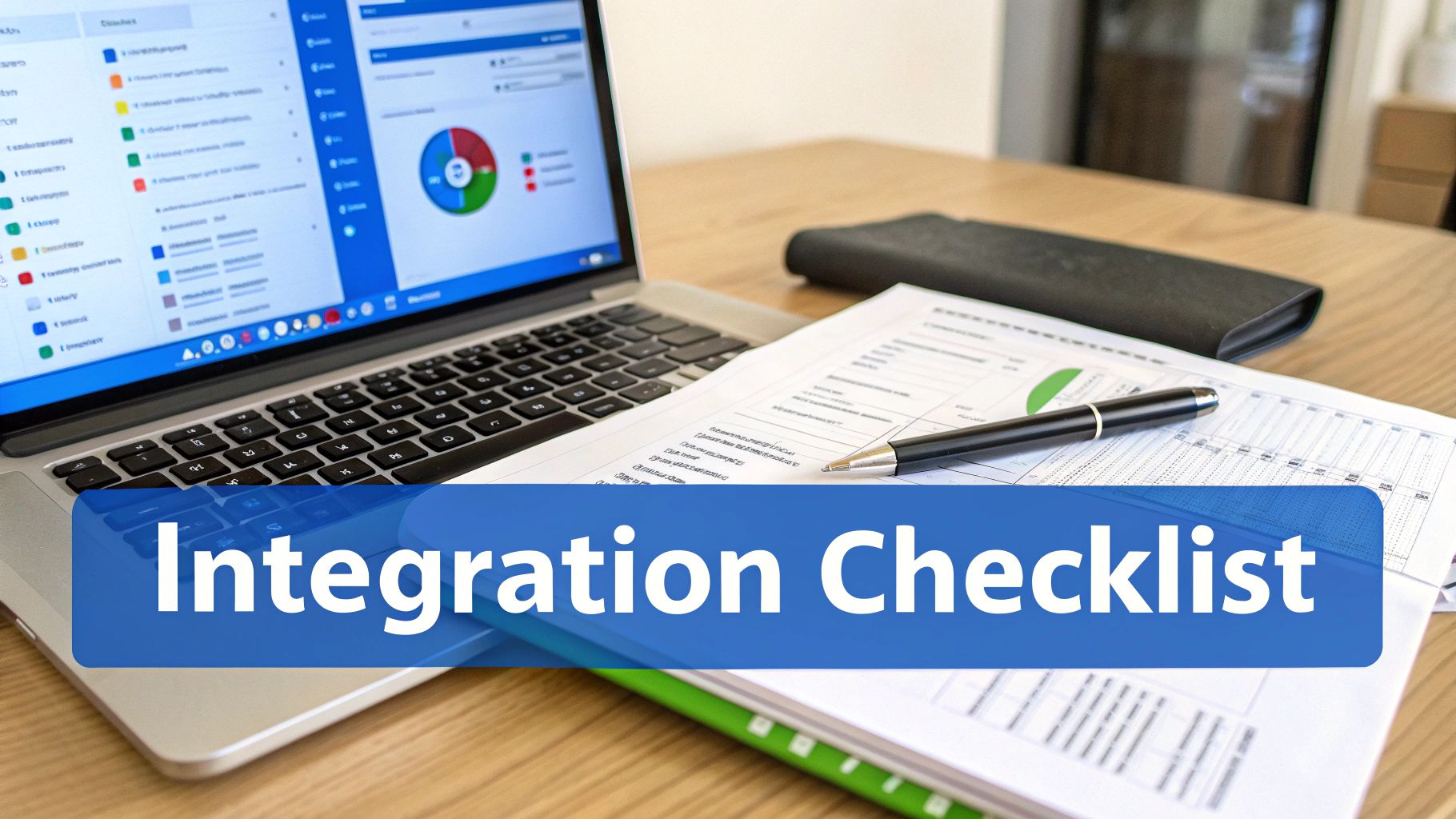
Successful QuickBooks integration begins with proper preparation.
Businesses should avoid connecting systems without first reviewing account structures, product organization, and reporting categories carefully.
Poor preparation often causes synchronization issues later.
Before enabling integration, businesses should review:
• product naming consistency
• SKU structures
• payment categories
• tax settings
• revenue accounts
Standardized operational data improves synchronization accuracy significantly.
Businesses should also clean outdated or duplicate records before enabling automatic syncing.
This prevents accounting clutter and reporting inconsistencies.
Organizing the QuickBooks Chart of Accounts
The QuickBooks Chart of Accounts forms the foundation of financial organization within the accounting system.
This structure determines how transactions are categorized and reported.
Businesses should avoid placing all revenue into a single generic sales category.
Instead, separating revenue streams creates much clearer financial visibility.
Examples may include:
• Sales – Food
• Sales – Beverages
• Sales – Merchandise
• Sales Tax Payable
• Gift Card Liability
Detailed account organization improves reporting accuracy while simplifying tax preparation and financial analysis.
Businesses with multiple locations may also use classes or departments to separate location-specific financial reporting.
Proper account structure becomes increasingly important as businesses scale operations.
How to Connect Biyo POS With QuickBooks Online
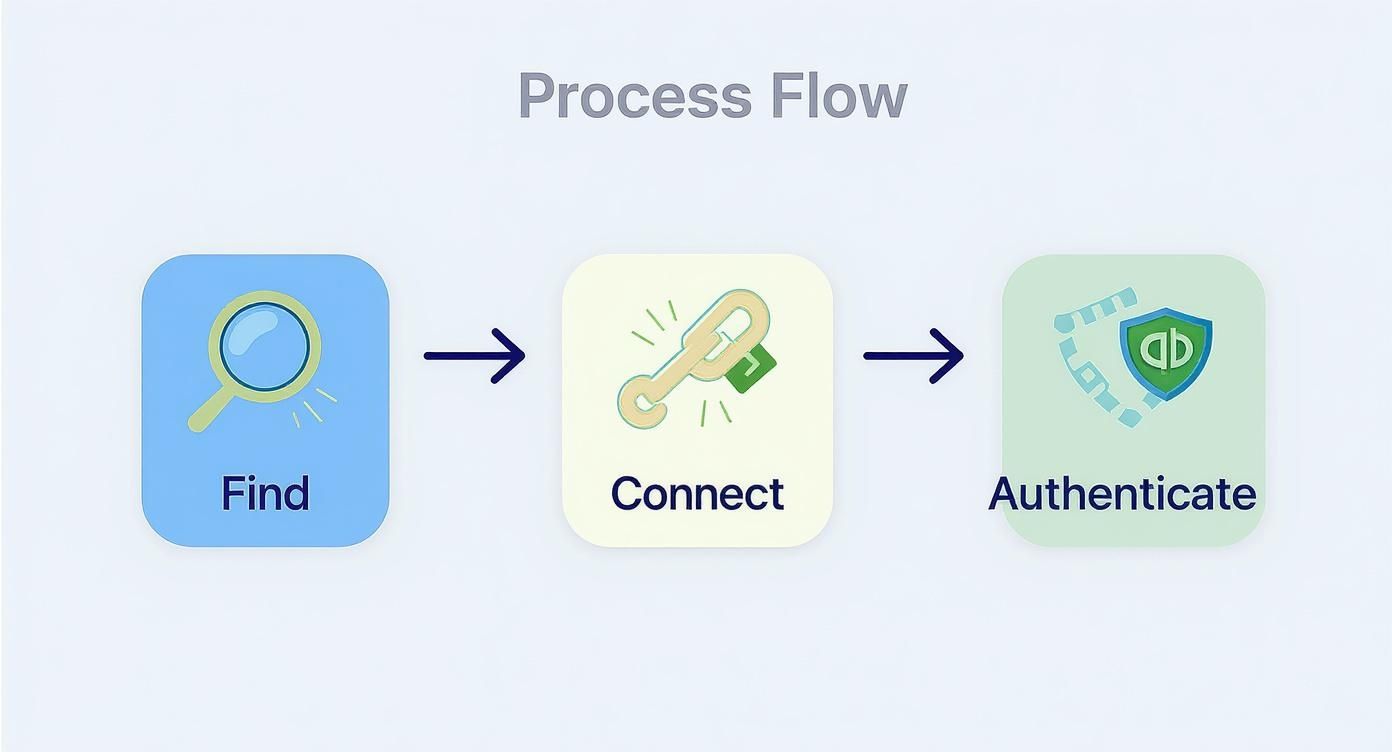
Once systems are properly prepared, connecting Biyo POS with QuickBooks Online is relatively straightforward.
Inside the Biyo POS dashboard, users can navigate to the integrations section and select the QuickBooks Online connection option.
Authentication occurs securely through Intuit’s login portal, ensuring account credentials remain protected.
After authentication, businesses configure synchronization preferences such as:
• sync frequency
• transaction mapping
• reporting structure
• synchronization start date
Most businesses begin syncing from the current financial period rather than importing large amounts of historical data.
This keeps accounting records cleaner while reducing the risk of duplicate entries.
Once configured, transactions begin syncing automatically between systems.
Understanding Data Mapping and Sync Settings
Data mapping is one of the most important parts of accounting integration.
Mapping determines where POS transactions appear inside QuickBooks.
For example:
• food sales may map to a food revenue account
• beverage sales may map separately
• tips may map to liability accounts
• discounts may map to promotional expense categories
Accurate mapping ensures financial reports reflect real operational performance.
Incorrect mapping creates distorted reporting that can affect profitability analysis and tax reporting.
Businesses should also choose an appropriate synchronization frequency.
Most companies prefer:
• daily summary syncing
• scheduled batch synchronization
rather than syncing every individual transaction in real time.
Daily summaries usually provide cleaner accounting records while still maintaining timely financial visibility.
Inventory, Reporting, and Financial Visibility
Accounting integration becomes even more valuable when combined with inventory management and operational reporting.
Businesses gain much stronger visibility into:
• sales trends
• inventory movement
• profitability
• tax obligations
• operational performance
For restaurants and retailers, inventory visibility is especially important because inaccurate inventory records often distort financial reporting.
Integrated systems help maintain consistency between operational activity and accounting data.
Businesses can also generate more accurate reports such as:
• profit and loss statements
• category performance reports
• tax summaries
• payment reconciliation reports
Stronger reporting supports better forecasting and long-term planning decisions.
Common Integration Mistakes Businesses Make
Although accounting integration provides major operational advantages, businesses still make avoidable mistakes during setup.
One of the most common problems is poor account mapping.
For example, businesses may add new payment methods, taxes, or revenue categories without updating integration settings accordingly.
This creates reporting inconsistencies inside QuickBooks.
Another common mistake involves syncing historical transactions improperly.
Importing old sales records into active accounting periods can create duplicate revenue entries and reconciliation confusion.
Businesses should also avoid neglecting regular reconciliation entirely.
Even automated systems require occasional monitoring to ensure synchronization remains accurate.
Regular review of:
• bank deposits
• transaction logs
• mapped accounts
• refund activity
helps identify discrepancies before they become larger accounting problems.
The Future of Accounting Automation
Accounting automation will continue evolving rapidly as businesses adopt more integrated operational technology.
Artificial intelligence and predictive analytics will likely improve:
• automated reconciliation
• financial forecasting
• fraud detection
• tax categorization
• expense analysis
Future systems may automatically identify unusual spending patterns, predict cash flow shortages, and recommend operational adjustments in real time.
Businesses increasingly expect operational platforms to communicate seamlessly across accounting, inventory, payments, payroll, and customer management systems.
Companies that adopt integrated financial workflows early will likely maintain stronger operational efficiency as competition increases.
How Biyo Simplifies Accounting Automation
Biyo POS integrates directly with QuickBooks Online to simplify accounting workflows for restaurants, retail stores, and service businesses.
The platform automatically synchronizes:
• sales transactions
• payment records
• refunds
• taxes
• financial reporting data
This automation reduces manual bookkeeping workload while improving financial visibility and reporting accuracy.
Biyo POS also helps businesses maintain centralized operational management through integrated analytics, reporting, and transaction tracking tools.
Business owners gain faster access to revenue insights while reducing time spent managing spreadsheets and reconciliation tasks manually.
If you want to see how accounting automation works in practice, you can schedule a demo with the Biyo team. Businesses ready to get started can also create a Biyo account here and explore the platform’s features.
Frequently Asked Questions
What is QuickBooks Online integration?
QuickBooks Online integration connects accounting software with operational systems such as POS platforms to automate transaction synchronization and financial reporting.
Why should businesses integrate POS systems with QuickBooks?
Integration reduces manual bookkeeping, improves reporting accuracy, automates reconciliation, and provides real-time financial visibility.
How often should QuickBooks accounts be reconciled?
Most businesses reconcile accounts weekly to ensure deposits, sales records, and accounting data remain accurate.
What causes the most common integration errors?
Incorrect account mapping, inconsistent product naming, outdated settings, and duplicate transaction imports are common causes of integration problems.
Should businesses sync historical POS data?
Most businesses begin synchronization from the current financial period to avoid duplicate records and accounting conflicts.
How are refunds handled through QuickBooks integration?
Refunds automatically reverse original sales entries so revenue reports reflect accurate net sales totals.