how to change printer offline to online – Quick Guide

how to change printer offline to online Quick Guide

It always happens at the worst possible moment, doesn't it? You’re rushing to print a report, and that dreaded "Printer Offline" message pops up. The good news is that learning how to change a printer from offline to online is usually a quick fix. More often than not, it's a simple matter of checking a cable, un-ticking a box in your settings, or giving the print service a little nudge.

You can solve most of these issues without calling in an IT expert.

Why Your Printer Is Offline and How to Fix It Fast

Before you start digging through complicated settings, it helps to know what usually causes a printer to lose its connection. The problem nearly always boils down to one of two things: a physical hiccup with the connection or a software miscommunication. Neither is particularly hard to solve, but figuring out where to start is half the battle.

A few usual suspects are to blame:

  • Loose Cables: It sounds too simple, but a disconnected USB or power cord is the number one culprit. It’s also the easiest to fix.
  • Wi-Fi Glitches: Your printer might have just dropped its connection to your wireless network. Sometimes, the router assigns it a new IP address, and your computer gets lost trying to find it.
  • "Use Printer Offline" Mode: This is a specific setting in Windows that can get toggled on by accident, manually forcing the printer offline.
  • Stuck Print Jobs: A corrupted print job from last week can get stuck in the queue, creating a traffic jam that prevents anything new from getting through and making the printer appear offline.

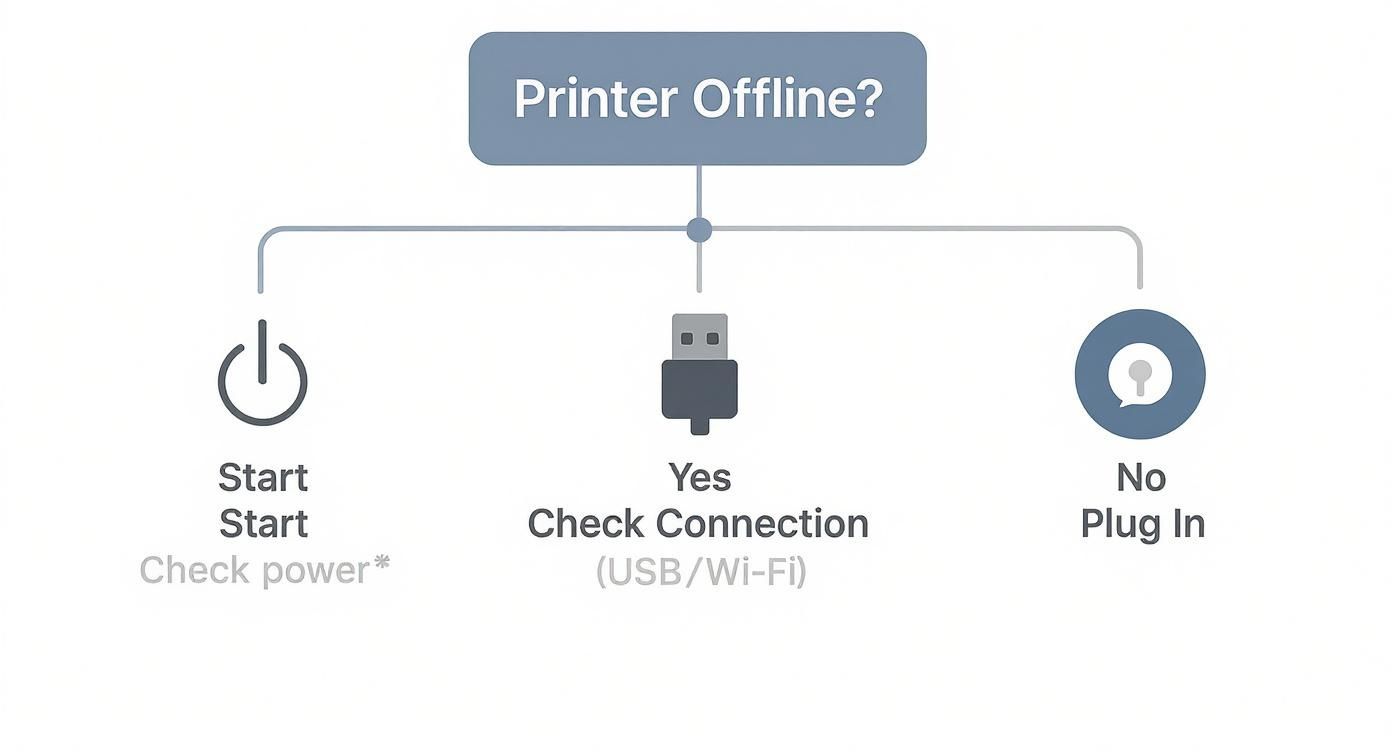
This little decision tree gives you a great visual for the first few steps to take.

Flowchart providing steps to troubleshoot a printer that is offline, checking power, connection, and plugging in.

As the chart shows, you should always start with the basics—power and cables—before you even think about touching the software.

Differentiating Hardware from Software Issues

The first real diagnostic step is figuring out if you have a physical problem or a software one. It’s a crucial distinction. If the printer's own little screen is flashing a Wi-Fi or connection error, you’re likely looking at a hardware or network issue. On the other hand, if the printer looks perfectly happy but your computer can’t see it, the problem is almost certainly on the software side.

Tech support surveys often show that around 70% of users get their printer back online by tweaking software settings, never even touching a cable. This makes sense when you consider the printer market is projected to hit over $78.9 billion globally by 2025, pushing manufacturers to build smarter, more user-friendly management tools. You can find more insights on the growing printer market and its features online.

Pro Tip: Always start with the simplest solution first. I can't tell you how many times the fix was just a loose power cord or a disconnected USB cable. Check those before you assume the problem is a complex one.

Before we dive deep, let's run through a quick checklist of the most common issues. This table can help you pinpoint the problem in minutes.

Quick Diagnostic Checklist for an Offline Printer

Common Cause Fast Solution Typical Fix Time
No Power Check that the power cord is plugged in at both ends and the outlet is working. 1 minute
Loose USB/Ethernet Reseat the data cable firmly into the printer and the computer/router. 1 minute
Wi-Fi Disconnected Use the printer's display to reconnect to the correct Wi-Fi network. 2-3 minutes
"Use Printer Offline" Enabled Go to printer settings on your computer and uncheck the "Use Printer Offline" box. 1 minute
Stuck Print Job Open the print queue on your computer and cancel all pending documents. 2 minutes
Print Spooler Glitch Restart the "Print Spooler" service (on Windows) or the printing system (on Mac). 2-3 minutes

Running through these common culprits first will solve the problem for the vast majority of people. By methodically checking power, connectivity, and software settings, you can confidently get things working again without wasting time on steps you don’t need.

Bringing Your Windows Printer Back Online
When your Windows PC insists your printer is offline, it's incredibly frustrating. But the good news is that the fix is usually tucked away in your settings, and you don't need to be a tech wizard to find it. Let's walk through the most common culprits for both Windows 11 and 10 to get you printing again.

A printer on a wooden desk with paper, a cable, and a smartphone. Text on the blue wall says 'PRINTER OFFLINE'.

More often than not, a single, accidentally-enabled setting is the cause of the problem. We'll start there, as it's the quickest and most frequent fix.

Is "Use Printer Offline" Mode On?

This is the very first thing I check. Windows has a specific mode that intentionally takes a printer offline. While it can be handy for queuing up documents on a laptop when you're away from the office, it's a real headache when you're sitting right next to the machine.

Finding this setting is straightforward:

  • On Windows 11: Head to Settings > Bluetooth & devices > Printers & scanners.
  • On Windows 10: You'll find it under Settings > Devices > Printers & scanners.

From there, click on your printer in the list and find the option to Open print queue. A new window will pop up. Look at the top menu bar, click Printer, and make sure the Use Printer Offline option does not have a checkmark next to it. If it does, just click it to uncheck it.

Problem solved? Great! This one little checkbox is behind a surprising number of "offline" printer mysteries.

Clear a Jammed Print Queue

If that setting wasn't the issue, your next stop is the print queue itself. Sometimes, a single corrupted or stuck document can create a digital roadblock, preventing any other jobs from getting through and tricking Windows into thinking the printer is offline.

I once spent way too long troubleshooting a client's POS printer that was stubbornly offline. I’d checked every cable and restarted everything. Finally, I peeked at the print queue and found a half-finished receipt job from two days prior clogging the works. The moment I canceled that one job, the printer whirred back to life and spat out a backlog of orders.

You can clear the queue easily:

  • Go back to the print queue window as described above.
  • Click the Printer menu and select Cancel All Documents.
  • Confirm the action, and Windows will wipe all pending jobs, often immediately resolving the offline status.

Think of a stuck print job like a car crash on a one-lane road. Clearing the queue is like towing the wreck away—it gets traffic moving again.

Restart the Print Spooler Service

Still no luck? It's time to bring out the heavy-hitter: restarting the Windows Print Spooler. This is the core background service that manages every single print job on your computer. When it gets confused or glitches, your printer can drop offline, and no amount of fiddling with settings will help.

Restarting the service is like a hard reset for your computer's entire printing system.

  1. Press the Windows key + R at the same time to open the "Run" box.
  2. Type services.msc and hit Enter. This opens the Services window.
  3. Scroll down the long list until you find Print Spooler.
  4. Right-click on Print Spooler and just choose Restart.

This forces Windows to shut down and reboot its printing manager, clearing out deep-seated errors that even a full computer restart might miss. For any business relying on constant printing—especially in retail—making sure your team knows these simple troubleshooting steps is a vital part of good point of sale software training.

Getting Your Offline Printer Back Online in macOS
Mac users, you’re not alone in facing the dreaded "printer offline" message. While macOS has a reputation for being user-friendly, its printing system can still throw you a curveball. Fortunately, the solutions are usually pretty straightforward once you know where to look.

Most of the time, the fix is hiding in plain sight within your System Settings.

A close-up of a computer monitor displaying 'Clear Print Queue' with a printer and another screen.

Let's start with the simplest, and most common, culprit: a paused print queue. It’s the Mac equivalent of a traffic jam for your documents, and clearing it is easy.

Is the Print Queue Just Paused?

Sometimes, if a print job has an issue, macOS will automatically hit the pause button on the printer to stop things from getting worse. This is a helpful feature, but it can make the printer appear completely offline to your apps, even when it’s fully connected and powered on.

Here’s how to quickly check:

  1. Open up System Settings (or System Preferences on older versions).
  2. Head over to the Printers & Scanners section.
  3. Click your printer's name to see its dedicated queue window.

If you spot a yellow "Paused" icon, you've found the issue. Simply click the "Resume" button. That’s it! Your documents should start flowing to the printer again. More often than not, this one click is all it takes.

Try the "Turn It Off and On Again" Trick: Remove and Re-Add the Printer

If the queue isn't paused, your next move is to give your Mac a chance to re-establish a fresh connection. Removing and then re-adding the printer forces macOS to rediscover it, verify the right drivers are in use, and build a new, clean communication pathway. It's a fantastic way to clear out any hidden configuration conflicts.

It's a simple process in the Printers & Scanners menu:

  • First, select the troublesome printer from your list.
  • Next, click the "Remove Printer" button (this looks like a minus '–' symbol on older macOS versions).
  • You'll be asked to confirm—go ahead and do it.

Once the printer disappears from the list, click "Add Printer, Scanner, or Fax." Your Mac will immediately start looking for available devices. Just select your printer when it pops up, and macOS will take it from there, automatically grabbing the software it needs.

My Go-To Expert Tip: Honestly, this "remove and re-add" method is my first resort for any stubborn Mac printing problem. It sounds almost too basic to work, but it’s incredibly effective at clearing out corrupted settings and giving the whole system a fresh start.

The Nuclear Option: Reset the macOS Printing System

Still stuck? If you’ve tried everything else and the printer still refuses to come online, it’s time to bring out the big guns: a full reset of the printing system. This is a more drastic step that completely wipes all printers, their settings, and any stuck print jobs from your Mac. Think of it as a clean sweep for your printing environment.

Here’s how to do it:

  1. Navigate back to the Printers & Scanners settings.
  2. Find some empty white space in the printer list on the left and Control-click (or right-click) on it.
  3. A hidden menu will pop up. Choose "Reset Printing System…".
  4. You’ll need to enter your administrator password to confirm the action.

After the reset is complete, your printer list will be empty. You’ll have to re-add all your printers from scratch, but this powerful step almost always resolves those deep-seated software glitches that nothing else can fix.

Troubleshooting Network and Wireless Printers

When a shared office printer or a home wireless one suddenly decides to go offline, the culprit usually isn't the printer itself. More often than not, the network is to blame. Unlike a simple USB cable, a wireless connection has a lot more moving parts, and any one of them can cause a hiccup—from a shifting IP address to a weak Wi-Fi signal.

Your first move should be to treat the printer like any other smart device. Take a look at its built-in display screen. Does it show a strong Wi-Fi connection? Or is it flashing an error like "No network found"? This quick check tells you immediately if the printer itself has lost its connection to the network.

The Case of the Vanishing IP Address

One of the most common reasons a perfectly good network printer suddenly appears offline is because its IP address changed. Think of an IP address as the specific street address for that device on your network. Routers often hand these out dynamically, which means they can change from time to time. If your computer is still sending print jobs to the printer's old address, it’s like sending a package to a house that's no longer there.

To fix this, you need to find the printer’s current IP address.

  • Start by navigating through the printer’s own menu system, usually found under a "Settings" or "Network" option.
  • Look for an option to Print a Configuration Page or a "Network Status Sheet."
  • This report will give you a rundown of its current network vitals, including the all-important IP address.

Once you have that IP address, you can check it against the port settings on your computer. If the two don't match up, you've found your problem. It's a simple fix that gets things back online fast.

Of course, a stable connection depends on well-configured hardware. A big part of keeping network printers online involves optimising your routers, switches, and WiFi to prevent these kinds of disruptions in the first place.

Real-World Scenario: I once worked with a small office where the main printer went offline every single morning. After printing its network configuration page, we realized the router was rebooting overnight and assigning the printer a new IP address daily. The permanent fix was simple: we assigned a "static" (permanent) IP address to the printer within the router's settings. Problem solved for good.

Checking Port Settings on a Print Server

In a business environment, things can get a bit more complicated. For companies running a dedicated print server, around 60% of offline printer incidents are actually caused by misconfigurations on the server or print jobs that have gotten stuck in the queue. This is why many businesses now use management tools that can cut printer downtime by an estimated 25% by automating queue recovery and other tedious tasks.

When a printer is flaky—online one minute, offline the next—mismatched port settings are a very likely suspect. This happens when the print server is trying to talk to the printer through the wrong digital "doorway." It's an especially big headache in retail or restaurant settings, where a reliable receipt printer is non-negotiable. Being able to quickly fix a network printer is just as crucial as knowing how to process credit card payments without a hitch.

Here’s how you can quickly verify the port settings on a Windows server:

  • First, open the Print Management console.
  • Find the printer in question, right-click on it, and select Properties.
  • From there, head over to the Ports tab.
  • Locate the port that’s currently checked, click Configure Port, and make sure the "Printer Name or IP Address" field matches the actual IP address from the configuration page you printed earlier.

A simple mismatch here is all it takes to knock a printer offline. Correcting it instantly re-establishes that communication link and brings the device right back online.

Advanced Fixes and Preventive Measures
So, the simple stuff didn't work. When unplugging it and restarting services doesn’t get your printer back online, it’s time to dig a little deeper for a more permanent solution. The goal here isn't just to fix the problem for today, but to stop it from happening again next week.

Often, the real culprits behind those stubborn "offline" messages are things like corrupted driver files, a constantly changing network address, or outdated printer software. A few extra minutes now can save you a ton of headaches down the road.

A blue pamphlet with 'Check Printer IP' and a WiFi symbol next to a printer printing a document.

A Fresh Start With Printer Drivers

I've seen it countless times: the software that acts as the translator between your computer and your printer gets scrambled. When that happens, no amount of troubleshooting will fix it. The only real solution is to wipe the slate clean and start over with a fresh driver installation.

This means more than just right-clicking and deleting the printer from your device list. You’ll want to go into your system settings and completely uninstall the existing driver software. Once it's gone, head over to your printer manufacturer's official website, find your model, and download the latest driver package. This ensures you're building the connection on a solid, uncorrupted foundation.

Assign a Static IP Address

For any printer on a network—especially wireless ones—this is probably the single best preventive measure you can take. Your router usually assigns IP addresses to devices on your network dynamically, which is a fancy way of saying the address can change. When your printer’s IP address suddenly changes, your computer loses track of it and—you guessed it—the printer goes offline.

By assigning a static IP address, you’re giving the printer a permanent, reserved spot on the network.

Think of it like a reserved parking space. Your printer will always be in the same spot, so your computer never has to search for it.

You’ll need to log into your router’s settings to do this, but it’s a one-time fix that can permanently solve those recurring offline issues.

Stay Proactive With Firmware Updates

Your printer has its own little operating system, called firmware. Just like your phone or computer, it needs updates. Manufacturers regularly push out new firmware to fix bugs, patch security holes, and improve network stability. That annoying connection drop you keep experiencing might be a known issue that was fixed in the latest update.

Get into the habit of checking for firmware updates. You can usually do this right from the printer's own control panel or through the software you installed on your computer. It’s a simple step that keeps your hardware running smoothly. For specialized hardware like POS printers, keeping everything current is just as critical as using the right supplies. For more details, you can explore our guide on what you need to know about thermal paper.

Common Questions About Offline Printers

Even after trying a few fixes, you might still have some nagging questions. Getting straight answers can make all the difference in understanding what’s really going on and how to prevent it from happening again. Let’s tackle some of the most common things we hear.

Think of this as the "why" and "how" behind those frustrating offline messages.

Why Does My Wireless Printer Keep Going Offline?

This is easily the most common headache. It almost always boils down to one of three culprits: a shaky Wi-Fi signal, an aggressive power-saving mode, or your router playing musical chairs with IP addresses. If your Wi-Fi is spotty, your printer will constantly drop off the network. It’s that simple.

Here’s what I usually recommend:

  • Get Closer: Try moving the printer physically closer to your Wi-Fi router. Sometimes, a few feet can make a world of difference.
  • Disable Sleep Mode: Dig into your printer’s settings menu on its little screen. Look for anything called "sleep mode," "power save," or "auto-off" and turn it off. Many printers are too aggressive about saving power and put themselves into a deep sleep they can't wake up from.
  • Assign a Static IP: For a more permanent fix, log into your router's admin panel and assign your printer a static IP address. This gives it a permanent home on your network so your computer never loses track of it.

Can I Force My Printer to Come Back Online?

Yes, you absolutely can. On a Windows PC, the quickest way is to go to your printer list, open the print queue, click the "Printer" menu, and make sure the 'Use Printer Offline' option is unchecked. It's surprising how often that little checkmark is the entire problem. Restarting the 'Print Spooler' service is the next best trick in the book.

If you're on a Mac, check that the printer isn't paused in the print queue. When all else fails, resetting the entire printing system is a powerful, if drastic, solution that often works wonders.

The key takeaway is that you have more control than you think. It's rarely a catastrophic hardware failure. More often than not, it's just a software setting that got flipped, and you can flip it right back.

How Do I Know if the Problem Is My Printer or My Computer?

This is a great question, and there's a simple test to figure it out. Grab your smartphone or another laptop and try to print something.

If your phone prints to the wireless printer without a hitch, the problem is almost definitely on your original computer. You can then focus your energy on its drivers or settings.

But if nothing on your network can see or print to it? The issue is with the printer itself or your Wi-Fi network. This one test can save you a ton of time by pointing you in the right direction. If you're running into other common printer headaches, an external resource like TonerConnect's FAQ on printer issues can be a great place to find more answers.


At Biyo POS, we know that hardware you can count on is the foundation of any successful business. Our all-in-one POS solutions are built for stability, cutting down on technical glitches so you can focus on what really matters: your customers. See how our system can simplify everything from payments to inventory by visiting us at https://biyopos.com.

Related Posts