
Achieving full ADA compliance for kiosks is now an essential legal, operational, and ethical priority for modern retail and restaurant operators. Across the hospitality industry, self-ordering touchscreens have transitioned from experimental novelties into core revenue engines. Restaurants deploy digital kiosks to increase average ticket sizes, eliminate front-counter congestion, and streamline back-of-house order firing. However, rolling out self-service hardware without rigorous accessibility planning exposes businesses to severe legal liabilities and alienates valued customers.
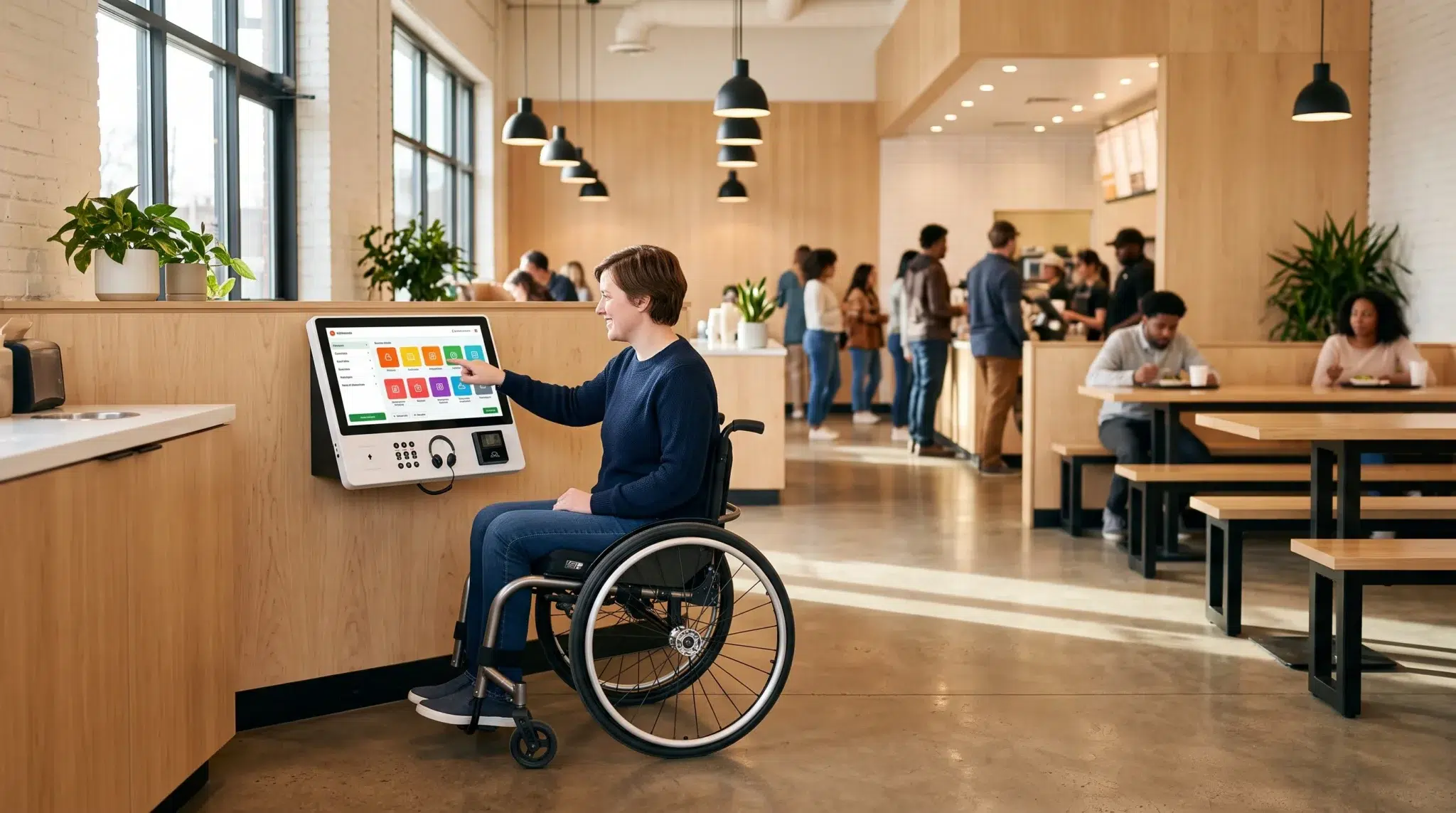
Under Title III of the Americans with Disabilities Act, commercial businesses open to the public must provide equal enjoyment of their goods and services. When a restaurant or retail boutique replaces staffed cashier registers with automated touchscreens, those digital interfaces must remain fully usable by patrons with disabilities. If a customer using a wheelchair cannot reach top menu buttons, or if a visually impaired patron cannot navigate ordering screens, the business violates federal accessibility mandates.
Consequently, progressive operators are moving beyond basic physical mounting checklists. They are implementing holistic digital accessibility frameworks that merge ergonomic hardware dimensions with adaptive user interfaces. By incorporating high-contrast visual modes, tactile audio navigation, and dynamic screen-lowering toggles, you create an inclusive ordering environment for all guests. This comprehensive guide provides an exhaustive architectural and digital framework, breaks down federal accessibility guidelines, and delivers an actionable checklist to guarantee complete ADA compliance for kiosks.
Table of Contents
- The Legal and Financial Stakes of ADA Compliance for Kiosks
- Physical Reach Ranges and Operable Hardware Dimensions
- Wheelchair Clearances and Spatial Approach Geometry
- Screen Contrast, Color Inversion, and Visual Accessibility
- Audio Navigation, Screen Readers, and Tactile Keypads
- The Complete Self-Service Kiosk ADA Audit Checklist
- Side-by-Side Comparison
- How Biyo POS Delivers Built-In ADA Compliance for Kiosks
- Frequently Asked Questions
The Legal and Financial Stakes of ADA Compliance for Kiosks
Commercial accessibility is not merely a design recommendation; it is an enforceable federal civil rights requirement. For decades, legal enforcement focused primarily on physical architectural elements like wheelchair ramps, doorway widths, and restroom grab bars. Over the past five years, however, federal courts and the Department of Justice have extended accessibility enforcement directly into digital self-service technology.
Therefore, restaurant and retail operators must understand their legal exposure under Title III. Proactively designing accessible touchscreen experiences protects your operating capital and preserves your brand reputation.
Title III Civil Rights and Digital Accessibility Mandates
Title III of the ADA prohibits discrimination on the basis of disability in places of public accommodation. When an operator installs self-ordering kiosks as the primary method of ordering food or purchasing merchandise, the kiosk is legally classified as an auxiliary aid and public amenity. Consequently, the hardware and software must deliver an equivalent experience to every customer, regardless of physical or sensory limitations.
Furthermore, state accessibility laws—such as California’s Unruh Civil Rights Act and the New York State Human Rights Law—impose strict liability standards on commercial businesses. Under these state statutes, plaintiffs do not need to prove intentional discrimination to win damages. Simply operating an inaccessible touchscreen creates immediate legal vulnerability. Implementing comprehensive accessibility standards ensures that your business honors civil rights while serving your entire community.
The Escalating Cost of Title III Lawsuits and Demand Letters
Digital accessibility litigation has surged dramatically across the retail and hospitality sectors. Serial plaintiff law firms actively audit restaurants, fast-casual chains, and retail stores, targeting locations with inaccessible self-service kiosks. When an inaccessible kiosk is documented, plaintiffs file federal lawsuits demanding statutory damages, mandatory hardware retrofits, and legal fee reimbursements.
The direct financial cost of resolving an ADA kiosk lawsuit typically ranges from $15,000 to over $75,000 in legal fees and settlement payments. In addition, court-mandated settlements often force businesses to replace non-compliant hardware on emergency timelines, multiplying capital expenditures. Conversely, engineering your kiosk deployment for complete accessibility from day one costs a fraction of a single legal settlement. Maintaining full compliance is sound risk mitigation.
 Physical Reach Ranges and Operable Hardware Dimensions
 Physical Reach Ranges and Operable Hardware Dimensions
The physical positioning of your kiosk hardware represents the first layer of accessibility compliance. If an interface requires physical reach beyond standard ergonomic parameters, it immediately excludes guests with mobility impairments. Federal ADA guidelines establish exact, non-negotiable dimensional boundaries for all interactive commercial controls.
Therefore, hardware procurement teams must measure physical enclosures carefully before mounting terminals. Adhering to standardized reach limits ensures that all interactive elements remain completely operable from a seated position.
The 48-Inch Maximum High Forward and Side Reach Limit
Under Section 308 of the 2010 ADA Standards for Accessible Design, all operable parts of a self-service machine must sit within standard reach ranges:
- Unobstructed High Reach (48 Inches Maximum): The highest interactive touchscreen button, payment card insert slot, contactless tap pad, and receipt paper mouth must not exceed 48 inches (1220 mm) from the finished floor surface.
- Unobstructed Low Reach (15 Inches Minimum): Operable elements must not be placed lower than 15 inches (380 mm) from the finished floor, preventing uncomfortable bending or strain.
- Obstructed Reach Constraints: If a kiosk features a countertop ledge or physical barrier extending 10 to 20 inches deep, the maximum allowable high reach drops from 48 inches to 44 inches.
Large vertical touchscreens (such as 27-inch or 32-inch commercial displays) often violate these reach rules when mounted on standard pedestals. If the top menu navigation bar sits at 54 inches from the floor, a seated wheelchair user cannot reach core categories. Selecting appropriate screen sizes or deploying dynamic interface software resolves this physical barrier effectively.
Operable Controls, One-Handed Operation, and 5-Pound Force Rules
Accessibility mandates govern not only where buttons are located, but also how much physical effort is required to operate them. Section 309 of the ADA specifies precise mechanical standards for all operable parts on public machines:
- One-Handed Operation: All interactive steps—including browsing menus, swiping cards, tapping RFID chips, and taking printed receipts—must be operable using only one hand.
- Zero Tight Grasping or Twisting: The mechanism must not require tight grasping, pinching, or twisting of the wrist. Touchscreens naturally satisfy this requirement by utilizing capacitive touch sensors.
- 5-Pound Maximum Activation Force: Any physical buttons, card insert slots, or accessibility switches must require no more than 5 pounds of force (22.2 N) to activate.
Ensuring that hardware peripherals comply with these mechanical standards prevents operational friction for guests with arthritis, tremors, or limited motor control.
Wheelchair Clearances and Spatial Approach Geometry
Even if your kiosk screen meets vertical reach standards, the installation fails compliance if physical obstacles prevent a wheelchair from approaching the machine. Lobby layout architecture directly dictates accessibility success. Operators must provide clear, unobstructed floor corridors that allow mobility device users to position themselves comfortably in front of the terminal.
Consequently, spatial planning must integrate clear floor dimensions into floor plan drawings before finalizing construction. Managing spatial approach geometry ensures seamless navigation for all customers.
Unobstructed Floor Space: The 30×48-Inch Clear Floor Rule
Federal standards require a designated Clear Floor or Ground Space at every accessible interactive machine. Section 305 of the ADA mandates that each self-service station must provide a level, unobstructed rectangular footprint measuring at least 30 inches wide by 48 inches long (760 mm by 1220 mm).
Furthermore, this clear floor area must align with the primary approach angle used to access the terminal:
- Forward Approach: The 30×48-inch footprint allows a user to roll directly forward toward the kiosk display, requiring adequate under-counter leg clearance.
- Parallel Approach: The footprint aligns alongside the machine, allowing a wheelchair user to pull up parallel to the screen to reach interactive controls from the side.
- Slope and Surface Stability: The floor surface within this 30×48-inch zone must be firm, stable, slip-resistant, and maintain a maximum surface slope of no more than 1:48 (2.08%).
Placing merchandising racks, trash cans, or decorative planters inside this designated clearance corridor violates federal standards and creates immediate physical blockades.
Parallel vs. Forward Approach and Knee-Toe Clearance Depths
When designing kiosks for a forward approach, operators must account for knee and toe clearance beneath the hardware housing:
- Toe Clearance (Section 306.2): Space extending from the floor up to 9 inches (230 mm) must provide a minimum depth of 17 inches beneath the kiosk face to accommodate wheelchair footrests.
- Knee Clearance (Section 306.3): Space between 9 inches and 27 inches from the floor must provide an unobstructed depth of at least 11 inches at 9 inches high, expanding to 8 inches of depth at 27 inches high.
- Pedestal Base Obstructions: Bulky, rectangular floor base plates on freestanding pedestals often block wheelchair footrests from rolling forward. Selecting slim, low-profile base plates or wall-mounted enclosures ensures compliance without encroaching on knee space.
Providing appropriate knee and toe clearance enables seated guests to position their bodies close enough to interact with the touchscreen comfortably.
Screen Contrast, Color Inversion, and Visual Accessibility
Physical accessibility solves only half of the compliance equation; digital software accessibility is equally vital. Customers with low vision, color blindness, or age-related visual impairments must be able to read and understand every menu item, price, and modifier description. Digital kiosks must incorporate robust visual accessibility tools directly into the user interface.
Applying established Web Content Accessibility Guidelines (WCAG) to your point-of-sale software transforms complex visual menus into easily readable digital catalogs.
WCAG 2.1 Contrast Ratios and Indulgent Font Scalability
Modern commercial kiosk software must adhere to WCAG 2.1 Level AA visual standards across all digital ordering screens:
- 4.5:1 Contrast Ratio for Standard Text: All body copy, ingredient descriptions, and prices must maintain a visual color contrast ratio of at least 4.5:1 against their background. Light gray text on white backgrounds or dark brown text on black backgrounds fails compliance.
- 3:1 Contrast Ratio for Large Text and UI Controls: Large typography (18pt or larger, or 14pt bold) and interactive button borders must maintain a minimum contrast ratio of 3:1 against adjacent visual elements.
- Scalable Typography (Text Resizing): The software interface should include an accessible “Large Text” mode that increases font sizing by up to 200% without truncating item names or overlapping UI buttons.
- Color-Independent Information: The software must never rely solely on color to convey critical information. For example, required modifier selections must display a written “Required” label alongside any color-coded visual indicator.
Dynamic Low-Screen Accessibility Modes and Dual-Layout UI
Large vertical touchscreen kiosks present a unique physical dilemma. Taller standing guests prefer large displays with buttons positioned high on the glass, while seated wheelchair users require all buttons positioned below 48 inches. Modern cloud software solves this challenge through adaptive dual-layout user interfaces.
When an accessible kiosk loads its welcome screen, it displays a prominent, high-contrast **Accessibility Mode** button in the lower corner. When tapped, the software dynamically compresses the active menu interface, shifting all category tabs, item buttons, and payment controls into the bottom half of the screen (below 40 inches from the floor). Standing guests enjoy full-screen visual appetency, while seated guests gain effortless access to every interactive element with a single tap.
Audio Navigation, Screen Readers, and Tactile Keypads
For blind or severely visually impaired customers, a smooth glass touchscreen presents an insurmountable physical barrier. Without tactile reference points or auditory feedback, a user cannot locate touch targets on a flat piece of glass. Achieving complete digital accessibility requires integrating tactile controls and spoken audio screen-reading tools.
Consequently, modern kiosk deployments pair capacitive touchscreens with specialized physical accessibility peripherals. Providing multi-sensory feedback ensures that all patrons can order independently with total privacy.
Integrating Standard 3.5mm Headphone Jacks and Spoken Audio Prompts
To protect customer privacy when reviewing sensitive nutritional data or payment totals, accessible kiosks feature a standard 3.5mm audio headphone jack located on the lower front bezel:
- Automated Audio Initiation: When a customer plugs standard headphones into the audio jack, the kiosk automatically activates its built-in screen reader engine and switches to Audio Navigation Mode.
- Spoken Menu Navigation: The system verbalizes every on-screen element, reading category names, dish descriptions, prices, calorie counts, and modifier options in clear, natural speech.
- Privacy and Volume Controls: Users can adjust volume levels and speech velocity using dedicated physical buttons on the audio interface module, ensuring personal data remains private.
Tactile Navigation Devices and EZ Access Keypads
Because visually impaired users cannot see on-screen touch targets, accessible kiosks incorporate an integrated physical keypad, commonly known as an EZ Access or Storm Nav-Pad:
- Raised Tactile Shapes: The keypad features diamond, circle, and arrow tactile shapes that allow users to navigate digital menus using standard directional commands (Up, Down, Left, Right, Select, Back, Home).
- High-Contrast Color Coding: Keypad buttons utilize bold, contrasting primary colors to assist users with residual vision.
- Braille Instructions: The physical bezel surrounding the headphone jack and keypad includes embossed Grade 2 Braille instructions explaining how to initiate audio assistance.
Integrating tactile keypads with spoken screen reading guarantees that blind patrons can complete complex customized food orders without requiring verbal staff intervention.
The Complete Self-Service Kiosk ADA Audit Checklist
Before opening your doors to the public, your operational team must conduct a rigorous accessibility audit across all deployed kiosk hardware and software. Verifying every architectural and digital checkpoint prevents costly legal disputes and ensures flawless guest experiences.
Utilize the following structured audit checklist to certify that your self-service ordering stations satisfy all federal and state accessibility mandates.
Pre-Installation Architectural and Hardware Verification
Conduct a physical inspection with a measuring tape and force gauge across all kiosk stations:
- Clear Floor Space: Verify an unobstructed 30-inch by 48-inch level floor footprint in front of every kiosk terminal.
- Corridor Egress: Confirm that queuing customers leave at least a 36-inch clear pedestrian corridor behind active kiosk users.
- Maximum High Reach: Measure the highest operable touchscreen button and verify it sits at or below 48 inches from the finished floor.
- Minimum Low Reach: Measure the lowest interactive element and verify it sits at or above 15 inches from the finished floor.
- Peripherals Reach: Confirm that payment card slots, NFC tap pads, and receipt dispensers remain below the 48-inch height ceiling.
- Base Plate Profile: Ensure floor pedestal base plates are beveled and do not obstruct wheelchair footrests or encroach on the 27-inch knee clearance zone.
- Activation Force: Verify that physical power buttons or accessibility toggles require less than 5 pounds of force to operate.
Software Interface and Dynamic Accessibility Testing
Perform an end-to-end digital transaction test using accessibility features:
- Accessibility Toggle: Tap the on-screen accessibility button and verify that all interactive elements shift below 40 inches immediately.
- Visual Contrast: Test all screen states with a digital color contrast analyzer to verify compliance with the 4.5:1 WCAG AA ratio.
- High-Contrast Mode: Toggle high-contrast color inversion and verify that all item text, photos, and buttons remain sharp and legible.
- Audio Jack Activation: Plug standard headphones into the 3.5mm jack and confirm that the audio screen reader initiates automatically.
- Tactile Keypad Navigation: Navigate through an entire food order using only the physical tactile arrow keys and spoken audio cues.
- Transaction Privacy: Confirm that the visual display can be blanked or dimmed during audio navigation mode to protect user payment privacy.
Side-by-Side Comparison
| Accessibility Feature | Non-Compliant Legacy Kiosk | Fully Accessible ADA Kiosk (Biyo POS) |
|---|---|---|
| Maximum Reach Height | 52–60 inches (Top buttons unreachable from wheelchair) | Strictly under 48 inches (Software lowers UI to <40″) |
| Wheelchair Approach Space | Lobby clutter and tight base plates block footrests | Full 30″ x 48″ clear floor space with knee clearance |
| Software Interface Adaptability | Static visual layout with fixed button positions | 1-Tap accessibility mode shifts controls downward |
| Visual Contrast Standards | Faint gray text on white buttons (<2.5:1 ratio) | WCAG 2.1 AA compliant contrast (>4.5:1 ratio) |
| Visually Impaired Usability | Flat glass only; zero tactile or audio feedback | Integrated 3.5mm audio jack & tactile keypad support |
| Screen Reader Integration | No speech output; visually impaired cannot order | Full text-to-speech audio navigation engine |
| Legal Risk Profile | High exposure to Title III lawsuits & $50k+ settlements | Full compliance with federal and state civil rights laws |
| Guest Inclusivity | Excludes patrons with physical and visual disabilities | Provides equal, independent ordering for all customers |
How Biyo POS Delivers Built-In ADA Compliance for Kiosks
 How Biyo POS Delivers Built-In ADA Compliance for Kiosks
Biyo POS provides a comprehensive cloud point-of-sale and self-service ordering platform engineered to help retail stores, fast-casual restaurants, and cafes deliver fully accessible customer experiences. Operating natively inside the Google Chrome browser on any PC, Mac, iPad, or Android touchscreen device, Biyo eliminates the need for expensive proprietary hardware contracts while maintaining strict compliance with modern accessibility standards.
With Biyo’s built-in accessibility features, achieving complete ADA compliance for kiosks is fast and effortless. The software includes an integrated 1-tap **Accessibility Mode** toggle prominently displayed on the kiosk welcome screen. When tapped, Biyo dynamically shifts all active category tabs, product cards, modifier trees, and checkout buttons to the lower half of the display. This ensures that every interactive touch target remains safely below 40 inches from the floor, providing effortless access for wheelchair users without requiring complex physical hardware redesigns.
Furthermore, Biyo synchronizes your accessible kiosk stations directly with back-of-house fulfillment lines in real time. Orders placed at your self-service kiosks route instantly over local WebSockets to the Biyo Kitchen Display (KDS) app on Google Play, splitting items across specialized prep lines like grill, fry, and salad assembly automatically. Store managers can perform rapid barcode stock audits using the Biyo Inventory Scanner app on the Apple App Store, consolidate third-party delivery channels through Kitchen Hub, and maintain uninterrupted ordering during network drops with Biyo’s true offline transaction mode.
To see how easily your business can deploy fully compliant, high-converting self-service kiosks that welcome all guests, you can schedule a live demo with an accessibility specialist or create your account today on the Biyo signup page.
Frequently Asked Questions
What is the maximum reach height for an ADA compliant kiosk?
Under federal ADA Section 308 standards, all operable controls—including touchscreens, payment terminals, and receipt slots—must not exceed 48 inches (1220 mm) from the finished floor surface for an unobstructed forward or side reach.
How do self-service kiosks accommodate wheelchair users?
Self-service kiosks accommodate wheelchair users by providing a 30×48-inch clear floor space in front of the terminal, maintaining knee and toe clearance beneath counters, keeping operable controls below 48 inches, and utilizing software toggles that shift active buttons to the lower half of the screen.
What are the visual contrast requirements for kiosk software?
Under WCAG 2.1 Level AA guidelines, kiosk software must maintain a minimum color contrast ratio of 4.5:1 for standard body text and 3:1 for large typography and interactive button borders against their respective backgrounds.
How do blind or visually impaired customers use touchscreen kiosks?
Visually impaired customers use touchscreen kiosks through integrated 3.5mm headphone jacks that activate spoken audio screen readers, paired with physical tactile navigation keypads (such as EZ Access pads) with raised directional buttons.
Can a restaurant be sued for having non-ADA compliant kiosks?
Yes. Under Title III of the ADA and state civil rights laws, businesses operating inaccessible self-service kiosks face significant legal exposure, including federal lawsuits, mandatory hardware retrofits, and costly financial settlements.
How does Biyo POS solve kiosk reach height challenges?
Biyo POS includes a built-in accessibility toggle that allows guests to compress the interface with a single tap, dynamically shifting all active menu categories, modifiers, and payment buttons to the bottom half of the screen below 40 inches.