
When your Biyo POS printer goes down, it can feel like your whole operation grinds to a halt. Before you dive into the deep end of network settings and software diagnostics, let’s start with the basics.
More often than not, the culprit is something surprisingly simple. In the rush of a busy service, a cable gets nudged or a paper roll runs out unnoticed. Running through these initial physical checks first will save you a ton of time and frustration. It's the first thing any seasoned tech would do.
Empowering your team with these foundational checks is a huge part of good POS software training, as it helps them fix small hiccups on their own without needing to call for backup.
Start with the Obvious: Physical Checks
Always start with what you can see and touch. It sounds almost too simple, but you'd be amazed how many "critical" printer failures are just a loose plug.
- Is It Actually On? First things first, check if the printer has power. Look for the power light. Make sure the adapter is plugged securely into the printer and a known-working wall outlet.
- Wiggle the Cables. No, really. Whether it’s a USB or an Ethernet cable, unplug it from both the printer and the Biyo POS terminal, then plug it back in firmly. A connection that looks fine can still be just loose enough to cause problems.
- Paper and Lids. A printer without paper is just a box. Make sure a roll is loaded correctly. Most thermal printers also have a sensor that requires the lid to be snapped shut completely before they'll print anything.
A printer that’s mysteriously offline is one of the most classic headaches in any business. In fact, connectivity problems are a major source of IT support calls, sometimes accounting for 10% to 20% of all tech issues in a workplace. It’s a universal pain point.
This simple flowchart is a great visual guide for those first crucial moments of troubleshooting.
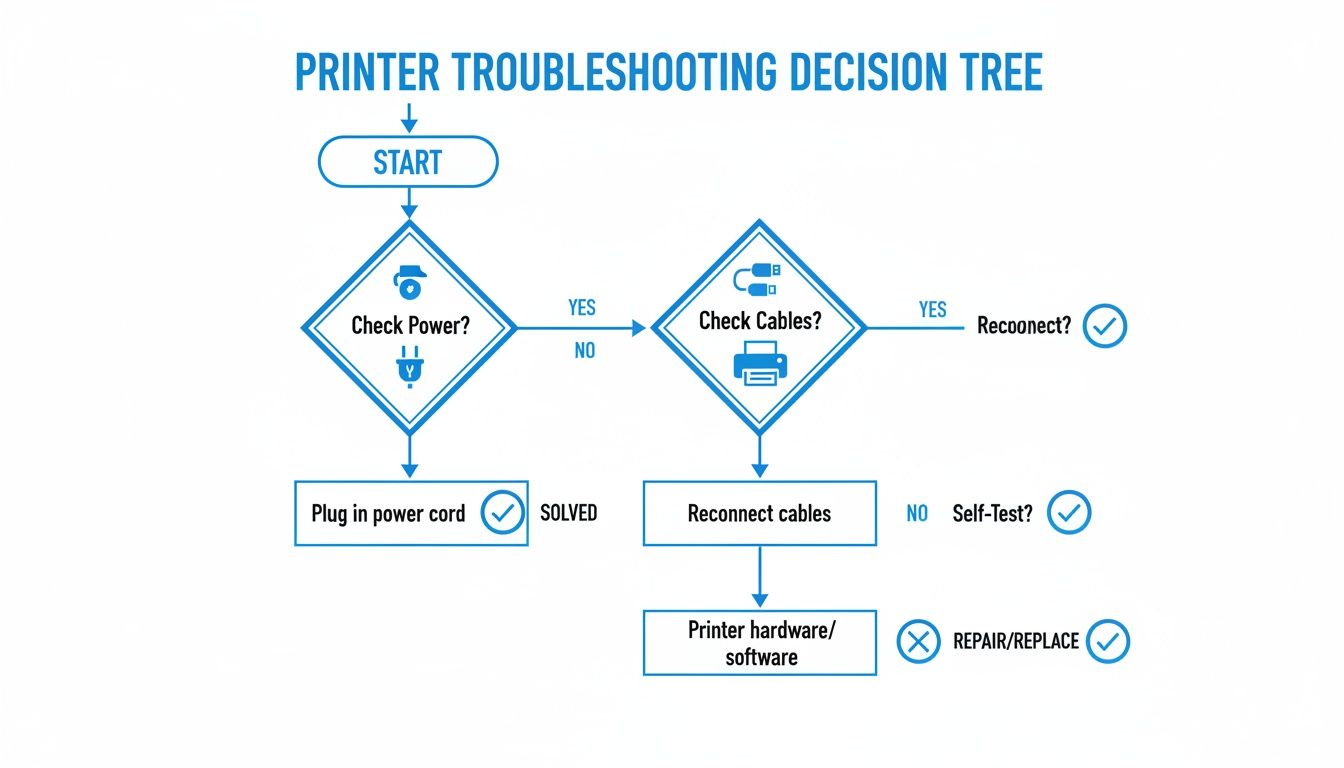
Running through these steps helps you confidently rule out simple hardware issues before you start questioning the software. If your printer is stubbornly showing as "offline" in your system, this guide has some great quick fixes when your printer is offline.
Here's a quick reference table to keep handy for those initial checks.
Quick Troubleshooting Checklist for Biyo POS Printers
| Check | Action Required | Common Mistake to Avoid |
|---|---|---|
| Power Status | Confirm the power light is on. Check the power cord at the printer and the wall outlet. | Assuming the outlet works. Always test it with another device, like a phone charger. |
| Cable Connections | Unplug and securely reconnect all data cables (USB, Ethernet) at both ends. | Just looking at the cable. A plug can look seated but not be making a full connection. |
| Paper and Consumables | Verify the paper roll is installed correctly and the printer lid is fully closed. | Forgetting to check if the paper is thermal-side-up (if applicable). |
| Self-Test Print | Power the printer off, then hold the Feed button while powering it back on to print a test page. | Skipping this step. It's the fastest way to confirm the printer hardware is functional. |
By following this checklist, you can quickly diagnose and solve the most frequent printer problems without needing to call for help.
Fixing Issues with Specific Connection Types
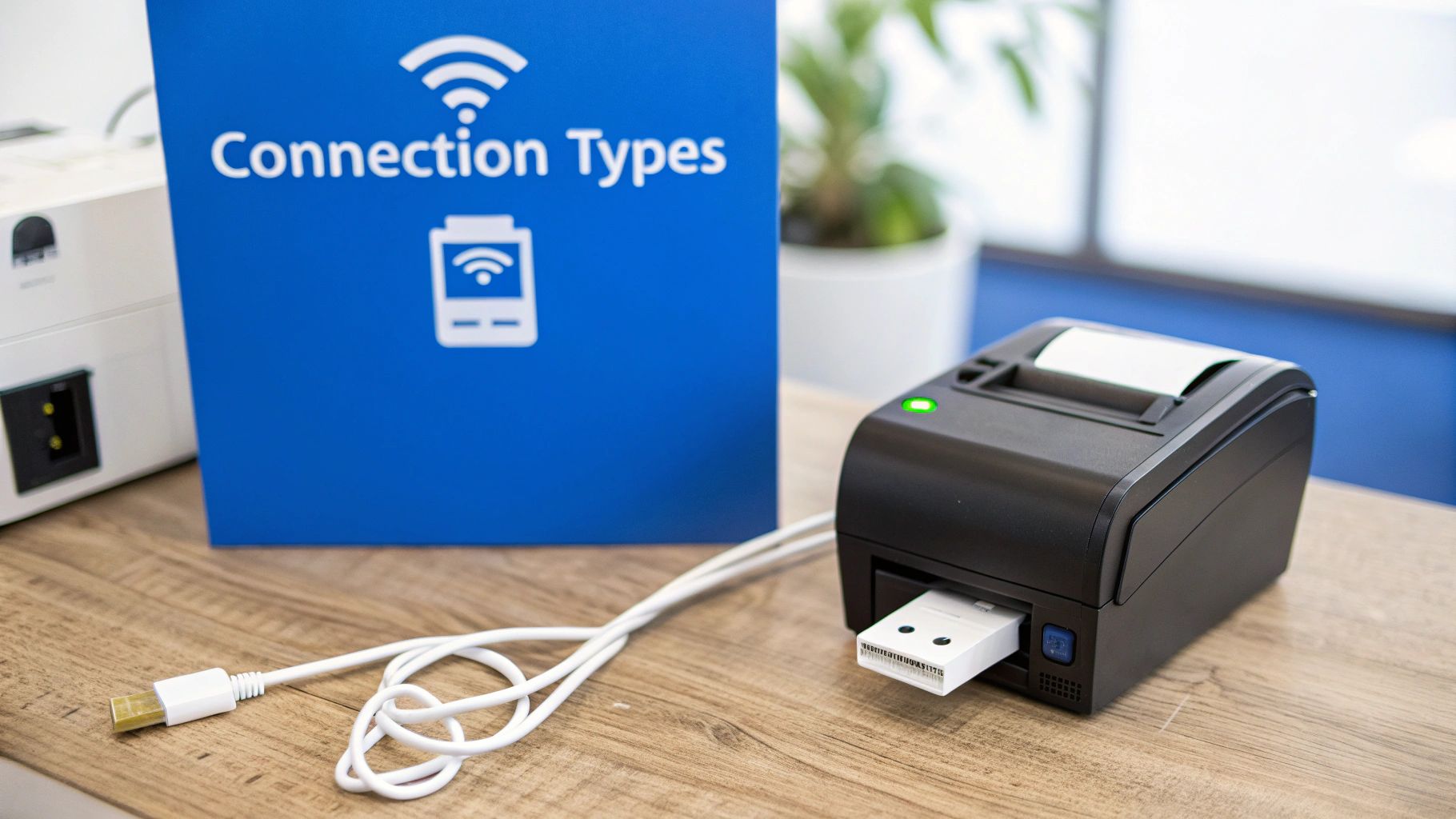
Printer problems are rarely one-size-fits-all. A fussy USB printer demands a different kind of detective work than a Wi-Fi printer that keeps dropping off the network. The key is to know what you’re working with, so let's dig into the common culprits for each connection type and get you back to printing receipts.
We'll break down the usual suspects for USB, Ethernet, Wi-Fi, and Bluetooth connections and give you some targeted, real-world fixes for your Biyo POS system.
USB Wired Connections
The good old USB connection is usually reliable, but when it acts up, the problem is almost always physical. Think cables and ports.
Before you do anything else, try a different USB cable. I've seen countless cables fail over the years—they get bent, frayed, or are just duds right out of the box. It’s the #1 point of failure for any USB device, so it’s always the first thing to check.
If a new cable doesn't solve it, try plugging the printer into a different USB port on your Biyo POS terminal. It's not uncommon for a single port to go bad while the others work just fine. A quick swap can tell you if the port is the problem.
- Real-World Scenario: Your receipt printer was working fine all day, but suddenly it's dead in the water. You've already checked for power and paper.
- Actionable Advice: Grab the USB cable from a device you know is working (like your barcode scanner) and try it with the printer. No luck? Plug the printer into the USB port your keyboard is using. This simple process of elimination quickly narrows down whether the issue is the cable, the port, or the printer itself.
Ethernet Wired Connections
Ethernet gives you that rock-solid wired network connection, but its stability is completely dependent on your local network's health.
The first thing to check is the printer's Ethernet port. You should see little blinking lights, usually green or amber, right where the cable connects. If there are no lights, there’s no network connection. That points straight to a bad cable or an issue with the router or switch it's plugged into.
A stable connection is everything for a network printer. A printer that repeatedly drops off the network might be experiencing an IP address conflict, where another device is trying to use the same address. A simple restart of your router often resolves this by reassigning addresses to all connected devices.
If you see lights but still can't print, try a full network reboot. Power down your router, then the printer, and finally your Biyo POS terminal. Wait a minute, then power them back on in that same order. This forces a fresh "handshake" between all your devices.
Wi-Fi Wireless Connections
Going wireless is convenient, but it adds a major variable to the mix: your Wi-Fi signal. Walls, metal shelving, and even a running microwave oven can wreak havoc on a wireless connection.
Make sure your printer is located within a reasonable distance of your wireless router. A weak or unstable signal is a recipe for failed print jobs and constant dropouts.
If your Biyo POS printer is giving you headaches with intermittent connection issues, it’s worth understanding why a wireless network keeps disconnecting and how to fix it. Also, double-check that the printer is connected to the correct Wi-Fi network. It's a surprisingly common mistake, especially in places that have separate networks for staff and guests.
Bluetooth Wireless Connections
Bluetooth is a fantastic solution for mobile POS setups, but it can be finicky. It's sensitive to signal interference and pairing glitches.
The most common issue I see is a corrupted pairing. The fix is simple: go into your Biyo POS terminal's Bluetooth settings, find the printer, and select the option to "forget" or "unpair" it. Then, run through the pairing process again from the beginning. This often clears up any bad connection data.
Also, take a look at what other wireless gadgets are nearby. Too many active Bluetooth devices—like headsets, speakers, or keyboards—can crowd the signal. Even cordless phones operating on a similar frequency can cause interference. Try moving other electronics away from your printer and POS terminal to see if the connection stabilizes. This is a crucial step to troubleshoot the printer connection by ruling out environmental factors.
Digging into Network and Software Glitches
So, you’ve checked all the physical connections, the self-test prints just fine, but your Biyo POS still isn't talking to the printer. This is where we move past the hardware and start looking at the less obvious culprits: your network and software settings. It sounds intimidating, but you don't need to be an IT wizard to figure this out.
More often than you'd think, the very software meant to protect your system—your antivirus or firewall—can get a little too protective. It might see the communication from your POS printer as a potential threat and just block it, no questions asked. This is a classic reason why you might need to troubleshoot printer connection issues that pop up out of the blue, especially right after a software update.
Is Your Security Software the Problem?
Let's see if your security software is being overzealous. The quickest way to check is to temporarily disable your antivirus or firewall and then try printing again. If that receipt suddenly prints out perfectly, you've found your culprit.
- Antivirus: Dive into your antivirus settings and look for something called "real-time protection." Try flicking it off for just a moment to test.
- Firewalls: Your computer has its own firewall. Go into its settings and see if it's blocking the Biyo POS app or the printer's connection.
Crucial Tip: If turning off the security software works, please don't leave it off! That's a huge security risk. Instead, turn it back on and create an "exception" or "allow" rule specifically for the Biyo POS software and your printer. This tells your security program, "Hey, these guys are friends. Let them talk."
It helps to have a mental map of all the moving parts. Remember, your POS is the central hub where hardware and software meet. To get a better feel for this, you can learn more about how a POS system works and how these components interact.
The Overlooked Importance of Drivers and Firmware
Think of a printer driver as a translator. It’s a tiny piece of software that turns the "print this" command from your POS terminal into a language the printer actually understands. If that translator is outdated or the wrong one for your printer model, your print commands can get lost in translation, resulting in gibberish or nothing at all.
Then there's firmware, which is the printer's own internal operating system. Keeping this up-to-date isn't just about getting new features; it's a vital security step.
In my experience, many businesses connect printers to their network without ever thinking about the firmware. Unfortunately, this leaves them vulnerable. A shocking number of networked printers are running on outdated firmware, creating a potential backdoor for trouble.
The fix is usually straightforward. Head over to the official website for your printer's manufacturer, find the support or downloads page, and locate your exact model. Download the latest driver and firmware from there. A quick update can solve a whole host of mysterious printing problems.
Here’s a quick-glance table to keep it all straight:
| Component | What It Does | Common Issue | How to Fix It |
|---|---|---|---|
| Printer Driver | Translates print commands from your POS to the printer. | A generic or outdated driver can cause weird formatting errors. | Get the specific driver for your model from the manufacturer. |
| Firmware | The printer's own internal software. | Old firmware might have security flaws or performance bugs. | Check the manufacturer’s site for the latest firmware update. |
| Biyo POS Software | Tells the system which device to print to. | The software might not be pointed to the right printer. | Double-check your printer settings right inside the Biyo POS app. |
By methodically working through these software and network checks, you can solve those stubborn connection issues that a simple cable check just won't fix.
Configuring Printer Settings Within Biyo POS
Sometimes, you can check every cable and restart every device, and your printer still won't cooperate. When the hardware and network seem perfectly fine, the culprit is often hiding within the Biyo POS software settings themselves.
If your printer is physically connected but invisible to the system, it's time to dive into the application's configuration menu. This is where you build the digital bridge between your terminal and the printer, telling Biyo exactly where to find it and what its job is.
Finding Your Way Around the Biyo Printer Setup Menu
Deep within the Biyo POS settings, there’s a dedicated section just for managing your printers. This is your command center for adding new hardware, tweaking existing setups, and assigning specific roles. Getting this part right is non-negotiable for a smooth workflow.
A classic misstep is assuming the software will just find and configure a new printer automatically. While some devices are plug-and-play, professional POS environments almost always need a manual touch to guarantee precision. This is especially true if you’re running multiple printers—say, one for customer receipts and another for kitchen orders.
The range of hardware you might be connecting is pretty broad, as you can see from Biyo's own hardware examples.
This just goes to show how critical it is to match the correct model and connection type when you're setting things up in the software.
Choosing the Right Connection and Assigning a Role
When you go to add a printer in Biyo, you'll be asked to pick its connection type. This choice has to mirror your physical setup perfectly.
- Network Printers: If you're using an Ethernet or Wi-Fi model, you’ll need to punch in the printer’s IP address. Typing in the wrong IP is easily one of the most common setup mistakes I see.
- USB Printers: For printers plugged directly into your terminal, you’ll usually select it from a list of ports, which might show up as a COM port.
- Bluetooth Printers: For a wireless connection, you'll simply pick your printer from a list of discoverable Bluetooth devices.
Wireless setups are becoming the standard. In fact, the global wireless printer market was valued at around $16.9 billion in 2024, which shows just how many businesses depend on Wi-Fi and Bluetooth every single day. If you're interested, you can find more insights about the wireless printer market and its growth.
Once you’ve defined the connection, you have to give the printer a job. Is it for customer receipts? Kitchen tickets? Bar chits? Assigning the wrong role will send orders to the wrong place, creating a recipe for disaster during a busy lunch rush.
Think about a bustling café with two printers. The one at the front counter is for receipts, and the one in the back is for the kitchen. If someone accidentally assigns the "Kitchen" role to the front counter printer, customer receipts will suddenly start printing next to the grill, causing mix-ups and slowing down the whole operation. A quick check of these simple assignments inside Biyo POS can solve the problem in seconds.
Knowing When and How to Contact Support
You’ve tried everything. You’ve worked through the checklists, rebooted all the hardware (twice), and even swapped out cables, but that printer is still giving you the silent treatment. It happens.
While a bit of DIY troubleshooting can fix most common printer headaches, there comes a point where you’re just spinning your wheels. Knowing when to throw in the towel and call for backup is a skill in itself—one that saves you time, money, and a lot of frustration.
If you're dealing with stubborn hardware errors that just won't clear, it’s probably time to escalate. These aren't simple connection glitches; they often point to a failing component that no amount of software tweaking is going to fix.
Clear Signs of Hardware Failure
When you start seeing these kinds of symptoms, your attempts to troubleshoot the printer connection have probably reached their limit. The problem is almost certainly internal to the printer, and a support call is your best bet.
- Persistent Error Lights: Is the printer’s error light (usually a solid red or flashing amber) staying on, even after you’ve rebooted it and checked the paper? That's the printer telling you something is wrong internally.
- Failed Self-Test: You run the self-test, and… nothing. Or worse, it spits out a page of garbled nonsense. That’s a classic sign that the print mechanism or internal logic board has a problem.
- Weird Noises: Grinding, clicking, or high-pitched whines are never good sounds. These are serious red flags pointing to a mechanical failure inside the printer.
Reaching out for help doesn’t mean you’ve failed; it means you’ve successfully diagnosed the problem as something beyond your control. The goal is a fast resolution, and providing clear, organized information to the support team is the best way to achieve that.
Preparing for Your Support Call
Want to get your problem solved fast? A little preparation before you call Biyo support or your hardware vendor goes a long way. This simple step can easily turn a painful 30-minute troubleshooting session into a quick 5-minute fix.
The support agent is going to ask for these details anyway, so having them ready is a massive time-saver for everyone.
Your Pre-Call Checklist:
- Printer Model and Serial Number: Grab the exact model name and serial number. It's almost always on a sticker on the back or bottom of the printer.
- Specific Error Messages: Write down the exact wording of any error messages you see, whether it's on the Biyo POS screen or the printer's own display. "It's not working" doesn't help much, but "Error 0x0000011b" tells them exactly where to start.
- Summary of Steps Taken: Give them a quick rundown of what you’ve already tried. For example, "I've restarted the router, swapped the USB cable, and confirmed the paper roll is seated correctly." This keeps the technician from asking you to repeat steps you already know didn't work.
With this info in hand, you'll help the support team pinpoint the issue in no time and get your business back up and running.
Common Biyo POS Printer Questions Answered
Even with a perfect setup guide, sometimes a printer just refuses to cooperate. We get it. If you're still wrestling with a stubborn Biyo POS printer, you've come to the right place. This section tackles the most common questions we hear from business owners just like you.
Think of this as the expert's cheat sheet for those nagging issues—from printers that play hide-and-seek on your network to compatibility headaches.
Why Does My Biyo POS Printer Keep Going Offline?
There’s nothing more frustrating than a printer that’s here one minute and gone the next. When a printer repeatedly drops its connection, it's almost always a sign of an unstable link rather than a complete failure.
For Wi-Fi or Ethernet printers, the usual suspects are a weak signal from a router tucked away in a back office or an IP address conflict. That’s when two devices on your network are essentially fighting over the same digital parking spot. With a USB printer, the cause is often simpler—it could be an aggressive power-saving setting on your POS terminal or just a cable that's not seated quite right.
Here’s a pro tip that solves this more often than you'd think: do a full system reboot. Power down your printer, then your Biyo POS terminal, and finally your network router. Give it a good 30 seconds, then power everything back on in that same order: router, terminal, then printer. This forces everything to shake hands and establish a fresh, stable connection.
How Do I Find My Network Printer's IP Address?
To get Biyo POS talking to your network printer, you need its IP address—its unique location on your network. Thankfully, you don't need to be a tech wizard to find it.
The most reliable method is to get the printer to tell you itself by printing a configuration page. Most receipt printers have a tiny, recessed button you can press with a paperclip. Just hold that button down while you turn the printer on. It will spit out a small slip of paper with all its network settings, including the current IP address.
Can I Use Any USB Receipt Printer with Biyo POS?
That's a great question. While Biyo POS is built to be flexible with standard hardware, "universal" compatibility is a bit of a myth. Not every USB printer you can buy will work perfectly out of the box.
The key is whether the printer speaks a common language, like ESC/POS, which is the industry standard for receipt printers. Trying to use an unsupported or obscure model often leads to garbled text, random characters, or receipts that just look unprofessional. To avoid the headache, we always recommend sticking with one of the printer models officially supported by Biyo.
And remember, the printer is only half the battle. The quality of your paper makes a huge difference. For more on that, take a look at our guide on what you need to know about thermal paper to keep your receipts looking crisp and professional.
Ready to stop worrying about hardware and focus on growing your business? Biyo POS offers a reliable, all-in-one solution with dedicated support to keep you running smoothly. Start your 14-day free trial today and see how simple point-of-sale can be.