
Running a high-volume coffee shop requires relentless focus on speed and accuracy, but mastering your drink modifier setup is what keeps morning queues moving smoothly. During a peak morning rush between 7:30 AM and 9:00 AM, a specialty cafe processes dozens of customized drink orders every ten minutes. Modern coffee consumers rarely order a simple black drip coffee. Instead, customers request complex customized drinks: a large iced half-caff oat milk latte with two pumps of sugar-free vanilla, extra caramel drizzle, and light ice. When your register software lacks a structured modifier hierarchy, ringing up that single ticket turns into a digital excavation project.
Unfortunately, poorly designed point-of-sale menus create cognitive fatigue for cashiers and friction for baristas. Cashiers find themselves scrolling through endless sub-folders, searching through unorganized lists of syrups, and manually typing custom notes on the touchscreen. In addition, when baristas receive disorganized, unstructured receipt tickets at the espresso machine, they must read through chaotic lines of text to decipher the customer’s actual order. This operational drag causes misread tickets, drink remakes, wasted expensive plant-based milks, and long commuter lines out your front door.
However, complex coffee menus do not have to create operational bottlenecks. By implementing a standardized drink modifier setup based on logical parent-child trees, cafe operators can eliminate register hesitation and accelerate beverage production. Structured modifier groups ensure that cashiers capture mandatory selections automatically, while visual buttons and standardized ticket printing provide baristas with immediate clarity. This comprehensive masterclass breaks down the five-layer modifier hierarchy, explains forced grouping mechanics, and shows how modern cloud POS systems keep your morning queues moving at peak speed.
Table of Contents
- The Hidden Operational Costs of a Broken Drink Modifier Setup
- Core Modifier Tree Architecture: The 5-Layer Hierarchy
- Forced Modifier Groups vs. Optional Add-Ons
- Smart Defaults: Shaving Seconds off Every High-Volume Ticket
- Visual UI Ergonomics: Chromatic Grouping on Touchscreens
- Ticket Grammar: Structuring Scannable KDS and Thermal Prints
- Linking Modifiers to Recipe Costing and Inventory Tracking
- 5-Step Blueprint to Configure Your Drink Modifier Setup
- Side-by-Side Comparison
- How Biyo POS Powers High-Speed Drink Modifier Setup for Cafes
- Frequently Asked Questions
The Hidden Operational Costs of a Broken Drink Modifier Setup
Many coffee shop owners treat menu software configuration as a basic data entry chore. In reality, an unoptimized drink modifier setup creates expensive financial leaks across your entire business. When cashiers must navigate deep, nested sub-folders or hunt through text-heavy alphabetical lists, transaction times double.
As a result, your cafe suffers from compounding queue delays, frequent beverage remake waste, and uncollected ingredient revenue. Understanding these hidden operational costs helps managers prioritize menu layout optimization.
Barista Cognitive Fatigue and Morning Queue Delays
In high-volume coffee operations, transaction speed depends entirely on cashier muscle memory. When a customer orders a customized beverage, the cashier should not have to stop, read, and consciously search for buttons on a touchscreen.
A cluttered menu interface forces staff into decision paralysis. If ringing up an iced oat latte requires tapping ‘Drinks’ -> ‘Espresso’ -> ‘Lattes’ -> ‘Sizes’ -> ’16oz’ -> ‘Modifiers’ -> ‘Milk Options’ -> ‘Alternative Milks’ -> ‘Oat’, order entry takes twelve to fifteen seconds. When multiplied across fifty customers during a morning commuter rush, that interface latency adds over ten minutes of pure waiting time to the back of your line. Consequently, frustrated commuters walk past your store to visit faster competitors.
The Remake Nightmare: Deciphering Chaotic Kitchen Tickets
The primary failure point of a poor drink modifier setup occurs at the espresso bar pass. When point-of-sale systems print modifiers in the random order the cashier entered them, baristas receive disorganized tickets that violate standard barista sequencing.
For example, a barista might see “Extra Caramel Drizzle” printed at the top of the ticket and “Oat Milk” printed at the bottom below five other syrup notes. If the barista pours whole milk into the steaming pitcher before noticing the oat milk modifier at the bottom of the slip, the entire drink must be discarded and remade. This mistake wastes expensive specialty ingredients, increases ticket times to six or eight minutes, and frustrates waiting guests.
Uncollected Revenue on Premium Syrups and Milks
Plant-based milks (oat, almond, soy) and gourmet flavor syrups carry significant wholesale costs. Oat milk costs coffee shops up to three times more per ounce than standard conventional dairy.
When cashiers are rushed and the register fails to enforce mandatory modifier steps, employees frequently forget to tap the required milk upcharge button. In addition, when customers ask for “two extra pumps of vanilla,” cashiers often type the request in a generic free-text note box rather than selecting the priced modifier button. Consequently, cafes lose thousands of dollars every year in uncollected ingredient costs.
 Core Modifier Tree Architecture: The 5-Layer Hierarchy
 Core Modifier Tree Architecture: The 5-Layer Hierarchy
To build a lightning-fast menu interface, cafe operators must understand the mathematics of modifier tree architecture. A professional coffee menu structures every beverage into an organized five-layer hierarchy that mirrors the physical workflow of the barista.
Structuring your drink modifier setup around this five-layer hierarchy ensures that order entry follows the exact culinary sequence of drink preparation.
Layer 1: The Parent Base SKU
The parent SKU represents the core beverage foundation (e.g., “Latte”, “Americano”, “Cold Brew”, “Chai Latte”, “Mocha”). The parent SKU contains the base espresso shot volume, standard water/dairy ratio, preparation category, and core wholesale baseline cost.
Layer 2: Size and Temperature Matrix
The second layer establishes the beverage container volume and temperature profile (e.g., “12oz Hot”, “16oz Hot”, “16oz Iced”, “20oz Iced”). Separating hot and iced variations into dedicated size buttons eliminates accidental drink rebuilds caused by cashiers selecting the wrong temperature cup.
Layer 3: Milk and Dairy Alternatives
The third layer handles dairy and plant-based milk selections. This tier must be configured as a **Forced Single-Choice Group**:
- Standard Dairy: Whole Milk (Default / $0.00), Skim Milk ($0.00), Half & Half / Breve (+$0.75), Heavy Cream (+$0.75).
- Plant-Based Alternatives: Barista Oat Milk (+$0.85), Organic Almond Milk (+$0.80), Soy Milk (+$0.75), Coconut Milk (+$0.75).
Layer 4: Sweeteners, Flavor Syrups, and Pump Counts
The fourth layer manages flavor additions and sweetness levels. This tier must be configured as an **Optional Multi-Select Group** with embedded pump-quantity steppers:
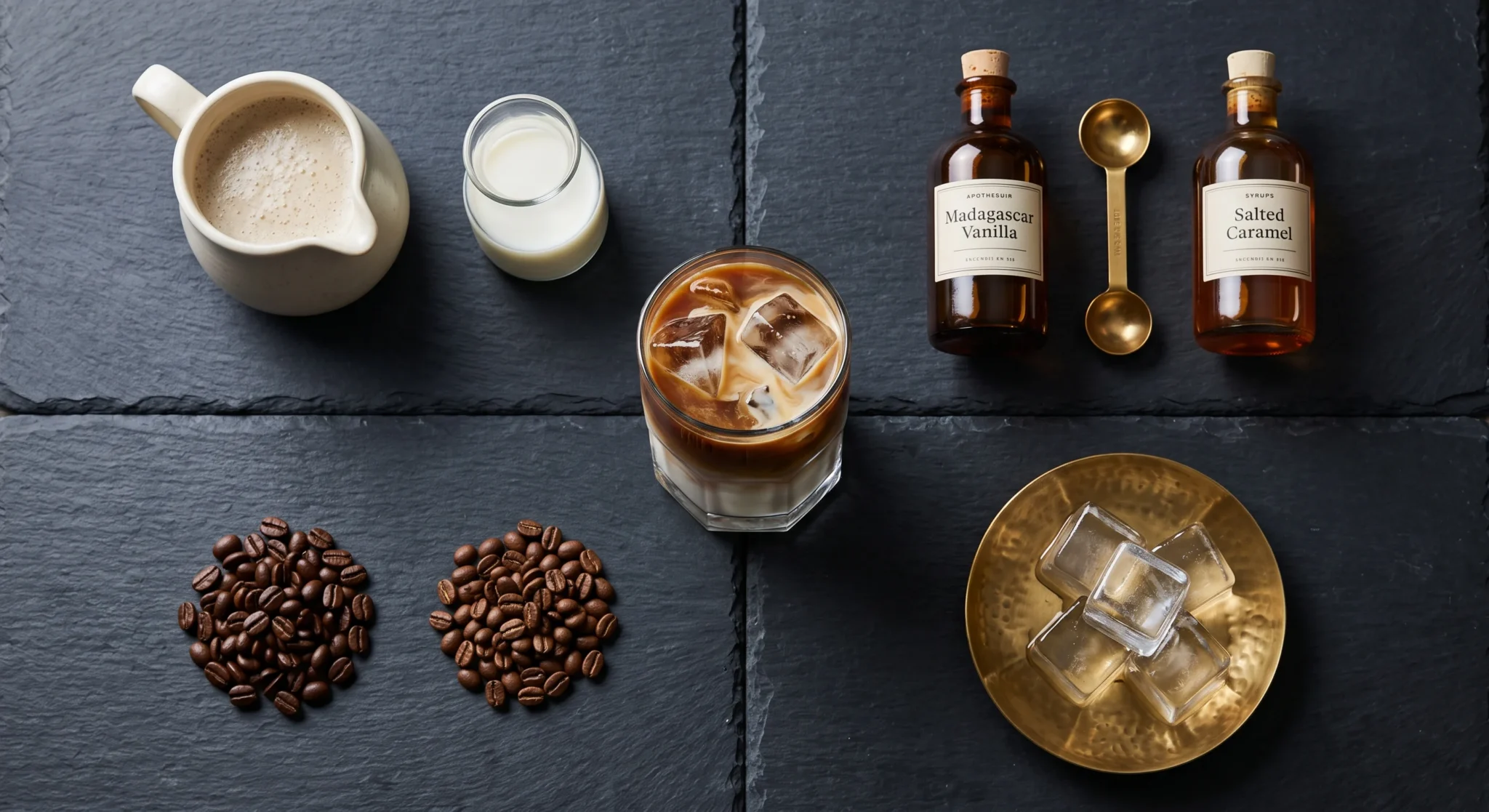
- Core Gourmet Syrups: Madagascar Vanilla, Salted Caramel, Dark Chocolate Mocha, Hazelnut, Lavender.
- Sugar-Free Options: Sugar-Free Vanilla, Sugar-Free Caramel.
- Pump Steppers: 1 Pump (+$0.50), 2 Pumps (+$1.00), 3 Pumps (Standard / +$1.00), 4 Pumps (+$1.50).
- Dry Sweeteners: Raw Sugar, White Sugar, Stevia, Honey (Priced at $0.00 with packet counters).
Layer 5: Espresso Profile and Finishing Customizations
The final layer captures espresso extraction adjustments and finishing touches:
- Espresso Adjustments: Extra Espresso Shot (+$1.00), Decaf Beans ($0.00), Half-Caff ($0.00), Ristretto Extraction ($0.00), Blonde Espresso ($0.00).
- Finishing Touches: Whipped Cream, Cinnamon Dusting, Cocoa Powder, Extra Hot (160°F), Kids Temp (130°F), Light Ice, Extra Ice.
Forced Modifier Groups vs. Optional Add-Ons
A critical distinction in menu engineering is the difference between forced modifier groups and optional add-on layers. Understanding when to enforce a mandatory screen prompt and when to allow optional choices is essential for optimizing cashier speed.
Configuring this balance properly ensures cashiers never miss critical customer details while keeping checkout lines moving rapidly.
When to Use Forced (Mandatory) Modifier Groups
A forced modifier group requires the cashier to make a selection before the system allows them to add the beverage to the checkout cart. You must use forced modifier groups whenever an item cannot physically be prepared without that specific information:
- Size Selection: A barista cannot pull a cup or steam milk without knowing whether the drink is 12oz, 16oz, or 20oz.
- Milk Choice on Dairy-Based Drinks: For lattes, cappuccinos, and flat whites, the cashier must confirm the milk type to ensure dietary preferences and upcharges are captured.
- Bean Origin / Blend on Drip Coffee: If your cafe offers House Blend, Single-Origin Ethiopia, and Decaf drip coffees, forcing blend selection stops counter confusion.
When to Use Context-Aware Optional Add-Ons
Optional modifier groups remain accessible on screen without blocking transaction flow. These groups apply to flavor syrups, whipped cream, and extra espresso shots.
When a customer orders a standard plain latte, the cashier taps the parent item, confirms the forced size and milk choice, and completes the sale in three seconds. They never have to dismiss empty syrup menus or click “No Syrups” buttons. The optional layers appear dynamically beside the main screen, ready for instant selection only when requested.
Smart Defaults: Shaving Seconds off Every High-Volume Ticket
The most effective way to eliminate friction during morning rushes is through the strategic deployment of smart defaults. In any specialty coffee shop, menu sales follow clear statistical patterns.
By programming your software to pre-select your cafe’s most common recipe configurations, you eliminate unnecessary touchscreen taps on the majority of your morning orders.
The Power of Pre-Selected Base Recipes
Analyzing coffee sales data reveals that over seventy percent of latte orders utilize standard Whole Milk and standard hot temperatures.
When configuring your drink modifier setup, assign Whole Milk and Standard Temperature as the automatic pre-selected defaults on all latte SKUs:
1. The cashier taps “16oz Hot Latte”.
2. The system automatically highlights “Whole Milk” and “Standard Temperature” in green.
3. If the customer wants Whole Milk, the cashier taps “Add to Cart” or proceeds immediately to payment (1 Tap).
4. If the customer requests Oat Milk, the cashier taps “Oat Milk”, which instantly replaces Whole Milk and applies the $0.85 upcharge (2 Taps).
This smart default configuration reduces touchscreen interactions on standard orders by more than fifty percent.
Nested Defaults for Signature Specialty Drinks
Smart defaults are equally powerful for signature menu drinks like a “Caramel Macchiato” or “Vanilla Sweet Cream Cold Brew”:
- Pre-Mapped Syrup Counts: Tapping “16oz Iced Vanilla Latte” automatically pre-populates three pumps of Vanilla Syrup into the order logic, saving the cashier from manually opening syrup folders.
- Dynamic Modification: If the customer requests “only two pumps of vanilla,” the cashier simply taps the minus stepper on the pre-loaded vanilla modifier. The system updates the ticket and adjusts the recipe cost automatically.
Visual UI Ergonomics: Chromatic Grouping on Touchscreens
The human brain processes visual colors and shapes significantly faster than text on a screen. When cashiers are forced to read small text labels under bright counter lights, order entry slows down considerably.
Optimizing your drink modifier setup requires a structured chromatic color scheme and ergonomic grid layout.
The Chromatic Color Hierarchy for Coffee Modifiers
Establish a standardized color-coding blueprint across all modifier buttons:
- Dairy Milks (Cool Blue Palette): Assign shades of light and deep blue to Whole Milk, Skim Milk, and Half & Half.
- Plant-Based Dairy Alternatives (Earthy Green Palette): Assign distinct green buttons to Barista Oat Milk, Almond Milk, and Soy Milk. This chromatic distinction makes it visually impossible for cashiers to mistake dairy for plant milk.
- Flavor Syrups (Warm Amber / Brown Palette): Use warm caramel, amber, and golden tones for all flavor additions (Vanilla, Caramel, Hazelnut, Mocha).
- Espresso Modifiers (Deep Charcoal / Red Palette): Use high-contrast red or dark charcoal buttons for Extra Shots, Decaf, and Ristretto options.
- Temperature and Ice (Teal & Orange Palette): Use icy teal for Light Ice / Extra Ice, and warm orange for Extra Hot temperatures.
Thumb-Zone Ergonomics on Tablet Registers
Place high-frequency modifier buttons within the natural arc of the cashier’s right hand (the lower-right quadrant of the tablet screen).
Position less frequent requests, such as complex temperature variations or rare dry sweeteners, on the perimeter. This layout allows cashiers to input complex modifications using natural thumb muscle memory without lifting their wrist off the counter.
Ticket Grammar: Structuring Scannable KDS and Thermal Prints
A flawless front-of-house order entry workflow is useless if the kitchen display or printed receipt ticket creates confusion at the espresso bar. Baristas glance at tickets for less than two seconds while steaming milk and dosing portafilters.
Standardizing your ticket formatting ensures that every drink modification is communicated with absolute clarity.
The Universal Barista Ticket Grammar Standard
Modern point of sale software must format printed chits and digital KDS tickets according to the universal barista sequencing grammar:
[Quantity] [Size] [Temperature] [Espresso Modifications] [Syrup / Sweetener] [Milk Choice] [Parent Beverage] [Custom Notes]
Reviewing this grammar in action highlights its immediate readability:
- Correct Standardized Format:
`1x 16oz ICED [2-Shot] [2p Vanilla] [OAT MILK] LATTE (Light Ice)` - Chaotic Unstructured Format:
`1x LATTE – Add Vanilla – Cold – 16oz – Oat Milk Sub – Light Ice – Double Shot`
The standardized format allows the barista to immediately grab a 16oz cold cup, pump two shots of vanilla, pour oat milk to the fill line, and pull two espresso shots without pausing to re-read the ticket.
Allergen and Dietary Visual Highlighting
Food allergies and severe dietary restrictions represent serious liability risks in coffee operations. When a customer orders a non-dairy beverage due to a severe lactose allergy or requests decaf due to a heart condition, that information must stand out visually.
Configure your POS printer and KDS screens to format critical dietary modifications in **BOLD CAPITAL LETTERS WITH ASTERISKS** (e.g., `*** OAT MILK ONLY ***` or `*** DECAF ESPRESSO ***`). This visual prominence stops baristas from accidentally using dairy pitchers for vegan guests.
Linking Modifiers to Recipe Costing and Inventory Tracking
A well-structured drink modifier setup does not just speed up counter checkout; it functions as the backbone of your culinary inventory management. In specialty coffee shops, ingredient waste on milks, syrups, and espresso beans directly erodes profit margins.
Linking modifiers to raw inventory items allows you to track ingredient consumption down to the exact ounce and pump.
Ounce-Level Liquid Inventory Decrementing
Traditional retail inventory tracks stock in whole bottles or cartons. In contrast, advanced cafe POS software tracks fractional liquid consumption:
- Milk Consumption Mapping: Ringing up a 12oz Hot Latte decrements 9 ounces of whole milk from your digital walk-in cooler, while a 16oz Iced Latte decrements 11 ounces of milk.
- Plant Milk Variance Tracking: When a customer selects “Barista Oat Milk,” the system decrements 10 ounces from your oat milk stock rather than dairy, ensuring precise reorder counts.
- Syrup Pump Tracking: Every syrup modifier button is mapped to exactly 0.5 fluid ounces (one standard barista pump) of syrup inventory. Ringing up “3 Pumps Vanilla” decrements 1.5 ounces directly from the active vanilla bottle stock.
Automating Wholesale Margin Protection
When wholesale dairy or oat milk prices fluctuate, updating your modifier catalog recalculates beverage margins across your entire menu instantly.
If your distributor increases the cost of oat milk by twenty percent, your POS inventory reports highlight the margin decrease immediately. Consequently, management can adjust the modifier upcharge from $0.75 to $0.85 across all beverage sizes simultaneously with a single click.
 5-Step Blueprint to Configure Your Drink Modifier Setup
 5-Step Blueprint to Configure Your Drink Modifier Setup
Restructuring your coffee shop menu into a high-speed modifier hierarchy is a systematic process. By following this proven 5-step operational blueprint, managers can deploy a flawless modifier structure across all registers without disrupting daily cafe service.
Below is the step-by-step implementation guide to optimize your drink modifier setup.
Step 1: Audit Customization Velocity from Sales Reports
1. Open your point of sale management back-office dashboard in your Google Chrome browser.
2. Generate a 90-day **Modifier Sales Report** and export the data to analyze customer preferences.
3. Identify your top three most popular milk choices, top five flavor syrups, and most frequent drink size selections.
4. Flag rarely ordered modifiers (e.g., obscure syrup flavors with less than two orders per week) for catalog archiving or removal.
Step 2: Build Standardized Modifier Groups in POS Settings
1. Navigate to **Catalog Management > Modifier Groups**.
2. Create your core master groups: “Size & Temp”, “Milk Selection”, “Flavor Syrups”, “Espresso Adjustments”, and “Finishing Touches”.
3. Assign each group its operational rule (e.g., Milk Selection = **Forced Single Choice**, Flavor Syrups = **Optional Multi-Select**).
4. Input accurate retail upcharges and wholesale ingredient costs for every item.
Step 3: Assign Smart Defaults and Context-Aware Nesting
1. Link modifier groups to their respective parent drink categories (e.g., attach “Milk Selection” to Espresso Drinks, Teas, and Mochas).
2. Set Whole Milk and Standard Temperature as the pre-selected defaults on standard dairy beverages.
3. Link flavor syrup steppers to signature drinks with pre-populated pump counts.
4. Verify that non-dairy drinks (like Americanos or Drip Coffee) leave milk selection as an optional add-on rather than a forced step.
Step 4: Configure KDS Station Routing and Printer Formatting
1. Connect your digital Kitchen Display System (KDS) and thermal receipt printers to your POS network.
2. Format your receipt template to enforce the universal barista ticket grammar standard.
3. Enable bold text formatting and asterisk flags for plant-based milks and decaf modifications.
4. Set up multi-station routing if your cafe routes food and bakery items to a separate kitchen station while sending drinks to the espresso bar pass.
Step 5: Conduct Barista Training and Speed Drills
1. Schedule a thirty-minute training session with your barista and cashier team during quiet afternoon hours.
2. Run rapid order-entry simulation drills, testing complex customized orders against the new touchscreen interface.
3. Train cashiers on thumb-zone muscle memory and teach baristas how to scan structured tickets in under two seconds.
4. Gather immediate feedback from line staff and fine-tune button positions before launching during the morning rush.
Side-by-Side Comparison
| Operational Dimension | Unstructured Legacy Modifier Setup | Structured 5-Layer Modifier Architecture (Biyo POS) |
|---|---|---|
| Order Entry Speed (Custom Drink) | Slow (12–18 seconds navigating deep folders) | Instant (3–5 seconds via fast-grid & smart defaults) |
| Cashier Cognitive Fatigue | High; must search through text-heavy lists | Zero; visual chromatic buttons guide muscle memory |
| Forced Step Enforcement | None; cashiers forget sizes or milk types | Automated prompts ensure mandatory choices are captured |
| Plant Milk Upcharge Capture | Frequently missed ($1,500+ annual revenue loss) | 100% captured automatically on every selection |
| Kitchen Ticket Grammar | Chaotic, random modifier print order | Standardized universal barista preparation sequence |
| Beverage Remake Frequency | High (Misread milk types and forgotten decaf) | Virtually eliminated with bold allergen highlighting |
| Liquid Inventory Tracking | Untracked; generic manual free-text notes | Exact fractional ounce and pump decrementing |
| New Barista Onboarding Time | Days spent memorizing complex POS navigation | Under one hour of intuitive, visual training |
How Biyo POS Powers High-Speed Drink Modifier Setup for Cafes
Biyo POS delivers a specialized cloud hospitality operating system engineered specifically to handle the intense speed and customization demands of modern coffee shops, specialty cafes, and bakeries. Operating smoothly entirely in the cloud directly inside the Google Chrome web browser on any PC, Mac, iPad, or Android tablet, Biyo gives cafe owners complete control over their menu hierarchy without requiring expensive proprietary hardware lock-in.
With Biyo’s advanced catalog engine, configuring a high-speed drink modifier setup takes only minutes. Build nested parent-child modifier trees, establish forced modifier groups, and configure smart defaults that shave critical seconds off every morning transaction. Biyo’s visual chromatic modifier buttons guide cashier muscle memory, ensuring that new hires ring up complex customized drinks accurately on their first shift. When customers request specialty plant-based milks or extra flavor pumps, Biyo captures upcharges automatically and decrements raw ingredients from your inventory in real time.
Furthermore, Biyo synchronizes your entire front-of-house and back-of-house workflow seamlessly. Route incoming beverage orders directly to espresso bar screens using the Biyo Kitchen Display (KDS) app available on Google Play, complete with color-coded urgency timers and standardized barista ticket formatting. In addition, cafe operators can perform rapid stock audits across retail merchandise using the Biyo Inventory Scanner app on the Apple App Store, integrate commission-free online web orders via Kitchen Hub, and maintain continuous checkout uptime during internet outages with Biyo’s true offline transaction mode.
To discover how easily your cafe can eliminate morning register bottlenecks and optimize drink modifier workflows, you can schedule a live demo with an onboarding specialist or create your account today on the Biyo signup page.
Frequently Asked Questions
What is a drink modifier setup in a coffee shop POS?
A drink modifier setup is the structured software architecture used to organize drink customizations—such as cup sizes, milk choices, flavor syrups, and espresso shots—into logical parent-child trees that speed up cashier order entry and barista drink preparation.
What is the difference between a forced modifier and an optional modifier?
A forced modifier requires the cashier to make a mandatory selection (such as size or milk type) before adding an item to the cart, whereas an optional modifier allows add-ons (such as flavor syrups or whipped cream) to be selected only when requested.
How do smart defaults speed up coffee shop checkout lines?
Smart defaults pre-select the most common recipe configurations (such as Whole Milk and Standard Temperature on a latte), allowing cashiers to ring up standard orders in a single tap without navigating extra screens.
Why is chromatic color coding important for POS modifier buttons?
Chromatic color coding assigns specific color palettes to modifier categories (such as blue for dairy, green for plant milks, and amber for syrups), allowing cashiers to locate and select customizations using instant visual instinct rather than reading text.
How does Biyo POS format kitchen tickets for baristas?
Biyo POS formats digital KDS tickets and printed receipts according to universal barista sequencing grammar (Size -> Temp -> Shots -> Syrups -> Milk -> Drink), highlighting plant-based milks and decaf requests in bold text to stop drink remakes.
Can Biyo POS track inventory consumption by syrup pump and milk ounce?
Yes. Biyo POS links individual modifier selections directly to raw inventory items, automatically decrementing fractional ounces of milk and half-ounce syrup pumps from your live stock with every transaction.