How to Use a POS System A Practical Guide

How to Use a POS System A Practical Guide

Getting comfortable with a new POS system really comes down to mastering a few core areas. You’ll start with the initial hardware and software setup, get the hang of the interface for ringing up sales, learn how to manage your inventory, and finally, start pulling reports to see how your business is doing. Think of it as moving beyond just a cash register and turning your POS into the true command center of your store.

Your First Steps with a Modern POS System
A person using a Biyo POS system on a tablet to take a customer's payment in a retail store.

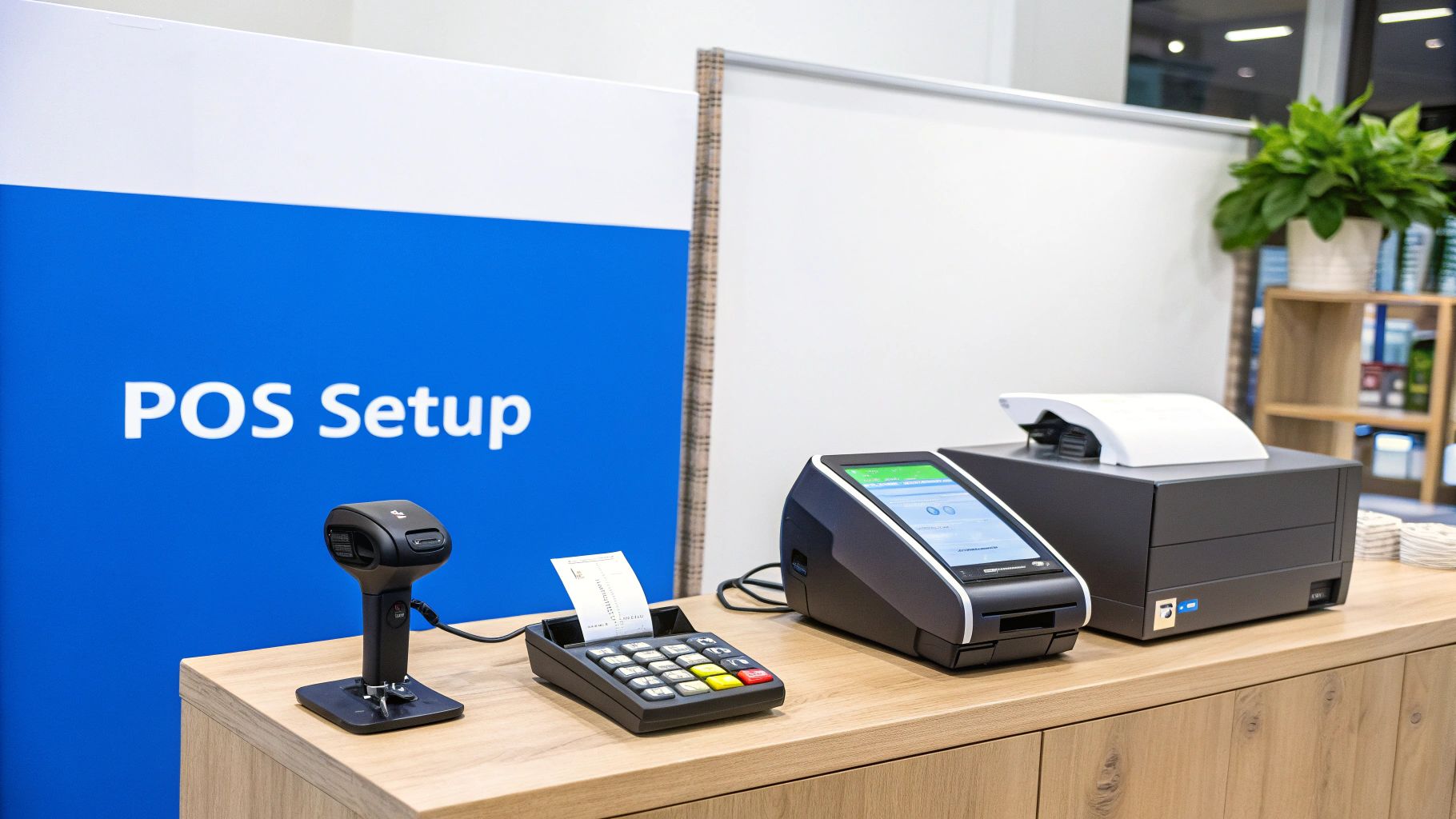
Alright, let's get your new Biyo POS system out of the box and humming. The initial setup is more than just plugging things in; it’s about laying the groundwork so the system works for you, not against you.

It's incredible how far we've come from the old clunky cash registers. Today's POS market is massive—valued at around USD 33.41 billion and expected to jump to USD 110.22 billion by 2032. That growth is all thanks to smart, cloud-based systems that make every part of a sale faster and smoother.

Configuring Your Foundational Settings

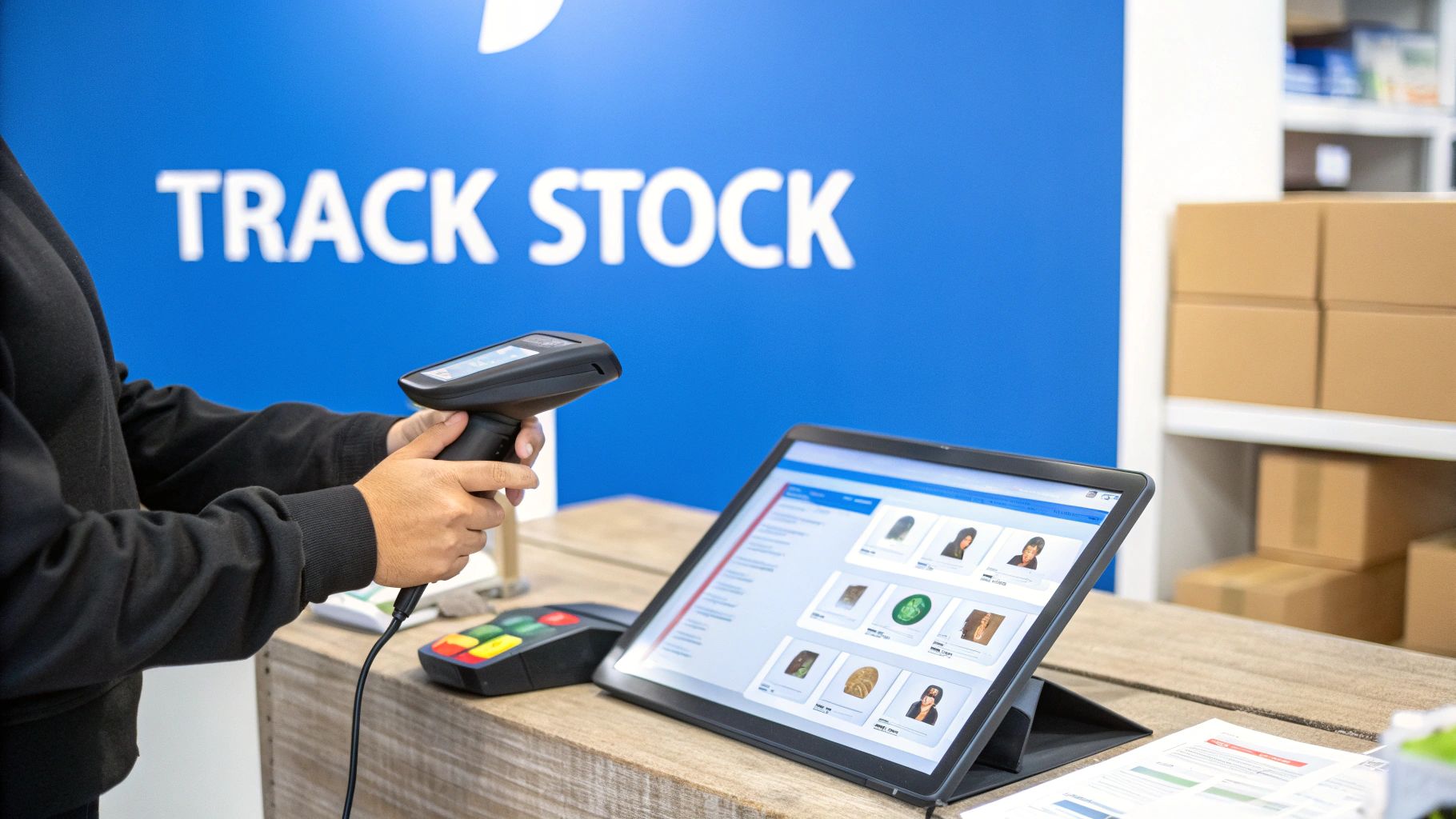
Before you even think about making your first sale, we need to dial in the core settings. This means getting your essential hardware, like receipt printers and barcode scanners, connected and then installing the Biyo POS software. This is also where you'll punch in all your basic business information.

Getting this initial checklist right from the start will save you a ton of headaches later.

Biyo POS Initial Setup Checklist

To make sure you don't miss anything important, here's a quick rundown of the first things you should tackle.

Setup Step Key Action Why It Matters
Hardware Connection Plug in and sync your printer, scanner, and card reader. Ensures all your physical tools communicate correctly with the software from the very first transaction.
Store Information Enter your business name, address, and contact details. This information appears on receipts and reports, making your business look professional and official.
Receipt Customization Upload your logo and add a custom footer message. It’s a simple but powerful branding tool that puts your mark on every single sale.
Tax Rate Setup Configure your local and state tax percentages. Guarantees every sale is calculated accurately, keeping your accounting clean and compliant.
Employee Accounts Create individual logins for each staff member with specific permissions. Protects sensitive data, prevents errors, and lets you track sales performance by employee.

Once you’ve worked through these steps, your Biyo POS will have a solid foundation to build on.

This groundwork ensures every transaction is professional, accurate, and secure. If you're curious about what the latest systems can do, checking out announcements like Blockbee's new web-based Point of Sale (POS) app can give you a good sense of new features hitting the market.

A well-configured POS is the backbone of an efficient business. Taking the time to set up employee roles and customize receipts at the start prevents confusion and reinforces your brand with every sale.

With your store details locked in, the next logical step is setting up your team. Creating unique accounts for each employee is a must-do for security. For example, you can give your cashiers access only to the sales screen while managers have the keys to inventory controls and detailed reports.

This separation of duties is a simple way to protect your data and track individual performance.

Finding Your Way Around the Biyo POS Interface

Okay, so your Biyo POS is all set up. Now comes the fun part: making it your own. The main dashboard is going to be your command center for every transaction, so getting comfortable with it is the key to running a smooth operation. Think of it less like a rigid program and more like your personal workspace, ready to be organized just the way you like it.

Right out of the box, the main screen puts your most frequent tasks front and center. Starting a sale, finding a specific product, or looking up a loyal customer—it’s all right there. The goal is to keep things moving, especially when you’ve got a line of customers waiting.

Setting Up Your Dashboard for How You Actually Work

Every shop is different. A busy café has a totally different rhythm than a boutique clothing store, and your POS should reflect that. This is where customizing your sales screen becomes a game-changer. It's a small investment of time that pays off big time, every single day.

You can create big, easy-to-hit buttons for your best-selling products or group items into categories that make sense to your staff. For example, that café I mentioned could have its most popular drinks like "Latte" and "Cold Brew" as one-tap shortcuts, so baristas aren't fumbling through menus during the morning rush.

A well-organized POS interface isn't just about looking good—it shaves seconds off every single transaction. Across a busy shift, that adds up to a faster, less stressful experience for everyone.

The Key Areas You'll Use Every Day

Once you've got your sales screen dialed in, a few other spots in the system will become your go-to tools for managing the business. Knowing your way around these areas will help you get the most out of your Biyo POS.

  • Product Search: This is your lifeline when a customer asks for something you don't sell every day. You can look up items by name, SKU, or just scan the barcode. No more holding up the line to find that one obscure product.
  • Customer Profiles: With a quick search, you can pull up a customer’s entire history. See what they've bought before, check their loyalty points, or add a note. It’s perfect for offering that personal touch, like remembering a regular’s usual order.
  • Quick Reports: Ever wonder how the day is going? You can get a real-time snapshot of sales right from the dashboard. A quick glance shows you total revenue, how many sales you've made, and other key numbers without having to dive into the back office.

Spend a little time just clicking around and exploring these features. Before you know it, navigating your POS will feel completely natural.

Processing Transactions Like a Seasoned Pro

The moment of truth for any POS system is when a customer is standing in front of you, wallet in hand. This is where the rubber meets the road. Ringing up sales is the bread and butter, but real-world transactions are rarely that simple. Knowing how to handle the inevitable curveballs is what keeps lines short and customers smiling.

It’s one thing to process a simple cash sale, but what happens when a group wants to split a check three ways? Or when a customer wants to use a gift card and a coupon on the same purchase? What about a return from last week? Biyo POS is designed for exactly these moments, helping you avoid a dreaded bottleneck at the counter.

Handling Complex Sales and Returns

Getting comfortable with different payment types is crucial. With Biyo, you can easily manage split payments, apply various discounts to one order, and process refunds or exchanges without breaking a sweat. When you process a return, the item is automatically added back to your inventory count and the sale is adjusted in your records. No manual data entry, no guesswork.

It all comes down to confidence. When you know exactly where to find the function for applying a loyalty discount or swapping a product size, every customer interaction feels effortless. For a deeper dive, our guide on how to process credit card payments is a great resource for getting the specifics down pat.

The best POS systems turn complex transactions into simple, repeatable workflows. Your goal is to make splitting a bill or processing a return feel just as routine as a standard cash purchase.

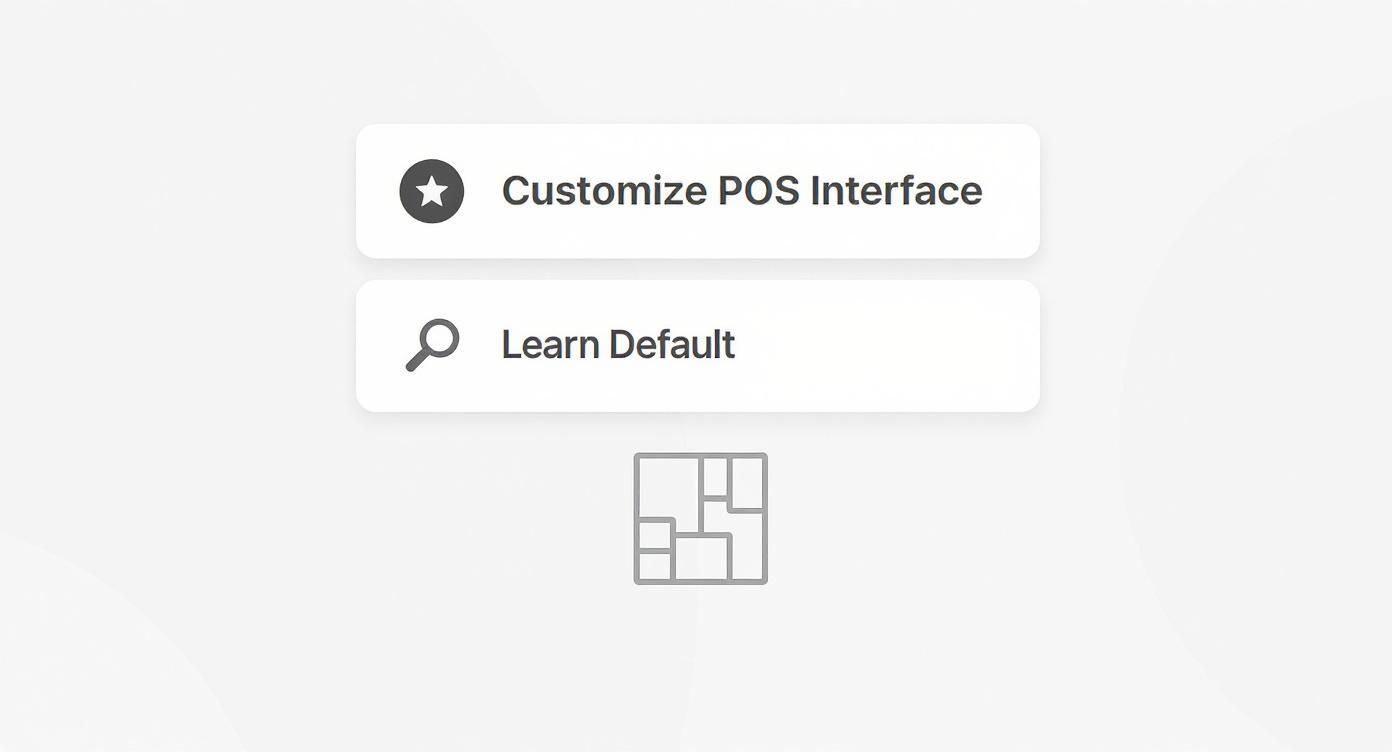
As payment tech keeps moving, so do customer expectations. Taking modern payments like Apple Pay, Google Pay, and other contactless options isn't just a perk anymore—it’s a must-have. This infographic can help you think through how to set up your interface to handle these transactions efficiently from day one.

Infographic decision tree for customizing a POS interface with options for shortcuts, layout, or learning the default settings.

The decision tree makes a great point: whether you customize shortcuts or learn the default layout, the goal is always a faster, more intuitive checkout. Biyo POS also has security built right in, so every tap-to-pay transaction is protected, keeping both your business and your customers' data safe.

Keep in mind that payment preferences vary a lot by location. North America, for example, holds about 26% of the POS terminal market, with the U.S. rapidly adopting digital wallets and NFC payments. This just goes to show how important it is to understand and adapt to what your local customers are using.

Using Your POS to Manage Inventory and Customers

A small business owner using a Biyo POS system on a tablet to manage inventory in a retail store.

Your POS system is so much more than just a fancy cash register. Once you start digging in, you'll see it’s really the command center for your entire business. The real magic happens when you move past just ringing up sales and start using it to manage your inventory and get to know your customers. This is where your daily sales data turns into a genuine strategic advantage, helping you run a tighter ship and market smarter.

Think about it—every time an item is scanned or a new customer is added, you're collecting valuable information. With Biyo POS, you can finally use that data to make informed decisions on what to stock, when it's time to reorder, and how to keep your best customers coming back.

Getting a Handle on Your Inventory

Good inventory management can be the difference between a great month and a terrible one. Nobody wants to deal with the headache of stockouts on popular items or shelves overflowing with products that just aren't moving. Your Biyo POS gives you a live, up-to-the-minute look at every single thing you sell.

Adding a new product is a breeze. You’ll input the basics like its name, price, and SKU, but you can also create variations for items with different sizes or colors. For example, if you run a boutique, you can track a specific t-shirt in small, medium, and large. They’re all under one product, but each size has its own unique stock count.

One of the best time-saving features I've seen is the automated low-stock alert. You just set a reorder point—let's say when you have five units left—and the system pings you automatically. You'll never get caught off guard and run out of a bestseller again.

This proactive approach keeps your customers happy because you always have what they're looking for. If you want to dive deeper into the fundamentals, our guide on what is inventory management software is a fantastic resource for any business owner.

Building Real Customer Relationships

Your POS is also a powerhouse for managing customer relationships. The simplest thing you can do is build a customer database to keep track of your regulars, but that’s just scratching the surface.

Every time you link a sale to a customer's profile, you're building a rich purchase history. This information is gold. Imagine a customer walks in, and you can instantly pull up their favorite coffee order or see the last book they bought. That's the kind of service that builds loyalty.

Here are a few practical ways to put this data to work:

  • Personalized Service: Quickly glance at past purchases to make truly helpful, tailored recommendations.
  • Targeted Promotions: See who buys a certain product often? Send them a special offer they'll actually care about.
  • Simple Loyalty Programs: You can easily reward repeat business right from the POS based on their history, giving them a great reason to return.

By truly taking advantage of these built-in inventory and customer tools, your Biyo POS goes from a tool that just processes transactions to the central hub that actually helps you grow your business.

Using Reports to Make Smarter Business Decisions

https://www.youtube.com/embed/u8oE1AXuhDA

Every single time you ring up a sale, your Biyo POS is doing more than just processing a payment—it’s quietly collecting a goldmine of data. The real magic happens when you use the built-in reporting tools to turn all those numbers into something you can actually use. This is where you stop guessing what your customers want and start knowing what moves the needle for your business.

Think of it this way: instead of relying on a gut feeling about your busiest days or most popular products, you can pull up a report that gives you the hard facts. These reports take all that complex sales data and distill it into simple, clear summaries that show you exactly how your business is doing.

Key Reports You Should Check Regularly

Getting into a routine of checking a few key reports can completely change how you run your business. These aren't just numbers; they're direct insights that can inform everything from your staffing schedule to your next big marketing push.

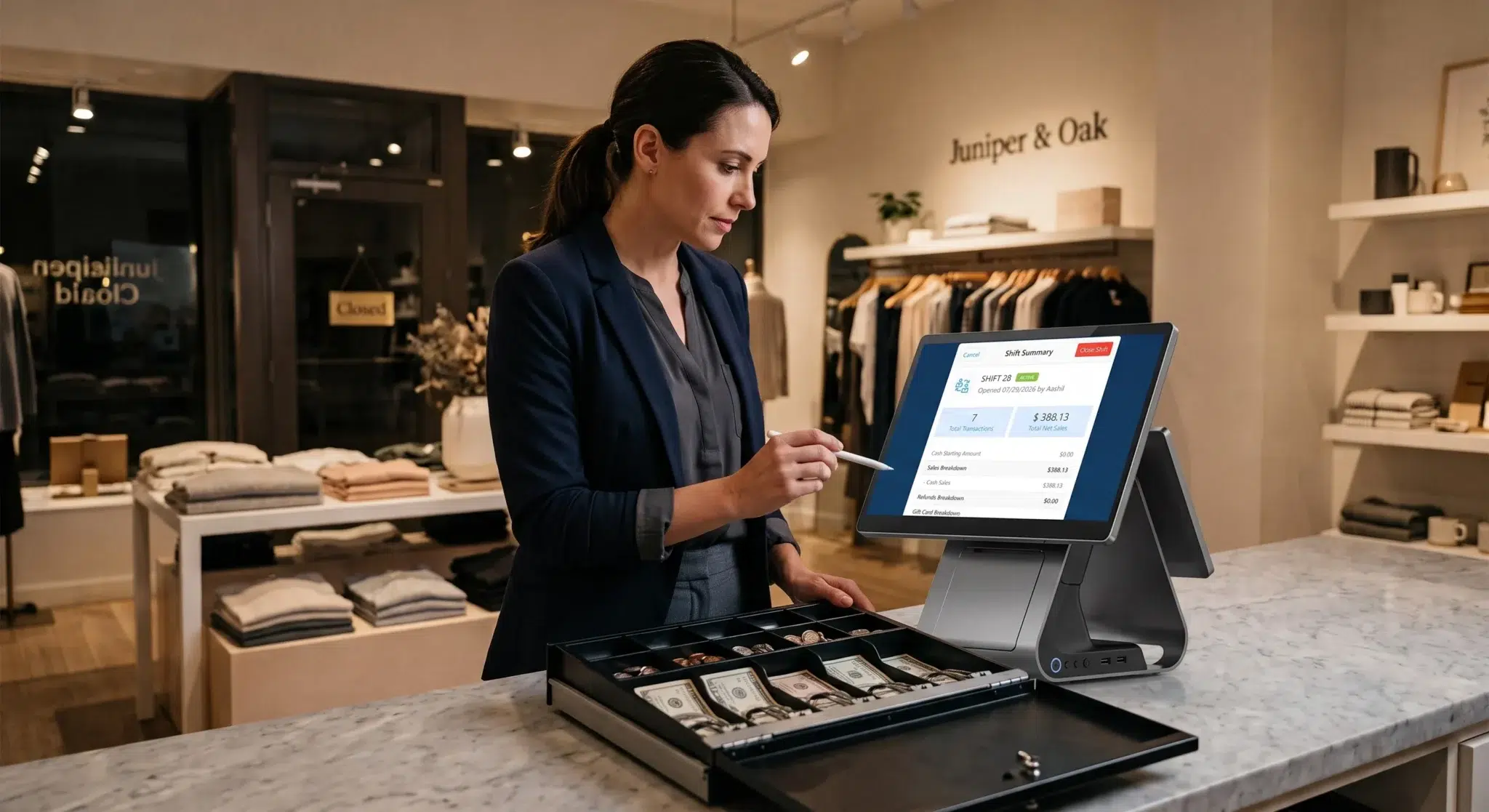
A great place to start is the daily sales summary. This is your quick, at-a-glance look at total revenue, how many transactions you processed, and what your average sale was. It’s the perfect pulse check to see how the day went and spot anything unusual right away.

Once you have the big picture, you can dig deeper to understand the "why" behind those numbers.

  • Product Performance Reports: This report is your best friend for inventory management. It clearly shows which items are flying off the shelves and which ones are just gathering dust. Use this to double down on your winners, run promotions on popular items, or finally clear out that slow-moving stock.

  • Sales by Hour: Ever wonder when your real peak hours are? This report tells you. It breaks down your sales throughout the day, so you can build smarter staff schedules. No more being short-staffed during a surprise rush or overstaffed during a dead period.

  • Employee Sales Reports: Want to know who your star performers are? This report tracks sales by each team member. It’s a great tool for identifying who might need a little extra training and who deserves a shout-out for a job well done.

By regularly analyzing your POS data, you create a direct feedback loop. You can test a promotion, immediately measure its impact on sales, and adjust your strategy based on real-world results—not assumptions.

This data-driven approach takes the guesswork out of the equation. For businesses ready to take their data analysis to the next level, learning to leverage business intelligence tools like Power BI can unlock even deeper competitive insights. By making these reports a consistent part of your routine, you’re building a smarter, more agile business one day at a time.

Quick Answers to Common POS Questions

Even with a great guide, you're bound to have questions as you get the hang of your new POS. Getting those answers quickly can be the difference between a minor hiccup and a major headache during a busy rush. Let's tackle some of the most common things new Biyo POS users ask.

Think of this as your cheat sheet for those "what do I do now?" moments.

What Happens if My Internet Goes Down?

This is probably the number one worry for any business owner, and for good reason. But don't sweat it—Biyo POS is built for the real world. It has a powerful offline mode that keeps you up and running, even when your Wi-Fi decides to take a break.

You can keep ringing up sales and even process credit card payments. As soon as your connection is back, the system automatically syncs everything that happened while you were offline. No lost sales data, no frustrated customers. It just works.

How Do I Add a New Employee to the System?

Getting a new team member set up in Biyo is straightforward. Just head over to the "Staff" or "Users" section in your main settings. This is where you'll create a new profile for them.

The most critical step here is to assign them a unique PIN and configure their permissions. You don't want a new cashier to have the ability to process refunds or edit inventory, right? You can set up specific roles—like cashier or manager—to control who can do what. A cashier gets the sales screen, while a manager can access reports and handle voids.

A rookie mistake is giving everyone admin-level access. I can't stress this enough: set up custom roles from day one. It’s the single best way to prevent accidental changes to your settings and keep your business data secure.

Can I Connect My Online Store with Biyo POS?

Absolutely. In today's market, connecting your e-commerce site to your brick-and-mortar POS isn't just a nice-to-have; it's essential. Biyo POS is designed to integrate smoothly with the major online store platforms, creating one single source of truth for your entire business.

When you link them up, key data syncs automatically between your physical and online stores:

  • Inventory Levels: Sell a t-shirt in your shop, and the stock count on your website updates instantly. This is how you stop overselling and disappointing customers.
  • Sales Data: All your transactions, whether online or in-person, flow into one dashboard. This gives you a crystal-clear view of your overall business health without having to stitch reports together.
  • Customer Information: Customer profiles and their purchase history are shared across both channels, letting you offer a consistent, personalized experience no matter how they choose to shop with you.

This unified setup keeps your operations tight and your data accurate.


Ready to see how an all-in-one system can make running your business simpler? Discover the power and flexibility of Biyo POS and start your 14-day free trial today. Explore our features and find the perfect plan for your business.

Related Posts