8 Essential Inventory Control Methods to Master in 2025

8 Essential Inventory Control Methods to Master in 2025

Managing your stock effectively isn’t just about avoiding empty shelves; it’s a critical lever for optimizing cash flow, reducing waste, and driving profitability. Effective inventory control is the backbone of any successful retail, restaurant, or service business, transforming a potentially chaotic stockroom into a strategic asset that fuels growth. For business owners, from independent cafes to multi-location franchises, mastering stock management means the difference between tied-up capital and healthy profits. However, with numerous strategies available, choosing the right approach can feel overwhelming.

This guide is designed to cut through the complexity. We will demystify 8 powerful inventory control methods, providing a clear roadmap to help you select and implement the best techniques for your unique operational needs. You’ll learn how to move beyond basic stock counts and adopt systems that align with your sales patterns and business goals. We’ll explore everything from lean, demand-driven systems like Just-In-Time (JIT) to strategic categorization techniques like ABC analysis. Each method will be broken down with clear definitions, pros, cons, and practical implementation tips, offering actionable insights to turn your inventory into a well-oiled machine.

1. Just-In-Time (JIT) Inventory

Just-In-Time (JIT) inventory is a lean strategy where you receive goods from suppliers precisely when they are needed for production or sale, rather than holding large stockpiles. Popularized by Toyota in the 1970s, this approach treats excess inventory as a form of waste, aiming to eliminate the costs and risks associated with warehousing. By synchronizing procurement directly with demand, JIT transforms your supply chain into a highly efficient, responsive system.

Just-In-Time (JIT) Inventory

This method significantly reduces carrying costs, including storage, insurance, and potential spoilage, which is especially crucial for businesses like restaurants or cafes dealing with perishable goods. Companies like Dell and Zara have famously used JIT to build products to order and rapidly respond to fashion trends, respectively, showcasing its power in diverse industries.

When and Why to Use JIT

JIT is one of the most effective inventory control methods for businesses with predictable demand, reliable suppliers, and a need to minimize waste. It’s ideal for:

  • Restaurants and Cafes: Reducing spoilage of fresh ingredients by ordering produce, dairy, and meat based on short-term sales forecasts.
  • Retailers with Fast-Moving Products: Preventing overstock of items with short life cycles, like seasonal or trend-based merchandise.
  • Service-Based Businesses: Ordering supplies like salon products or car parts only when appointments are booked.

Key Insight: The core benefit of JIT isn’t just cost savings; it’s about increasing operational agility. By reducing inventory, you free up capital and can pivot more quickly to changing customer demands or market conditions.

Actionable Implementation Tips

Implementing JIT requires precision and strong relationships. Here’s how to get started:

  1. Establish Strong Supplier Partnerships: Your suppliers are critical to JIT success. Work with reliable vendors who can guarantee timely, accurate deliveries. Negotiate clear terms and consider them an extension of your team.
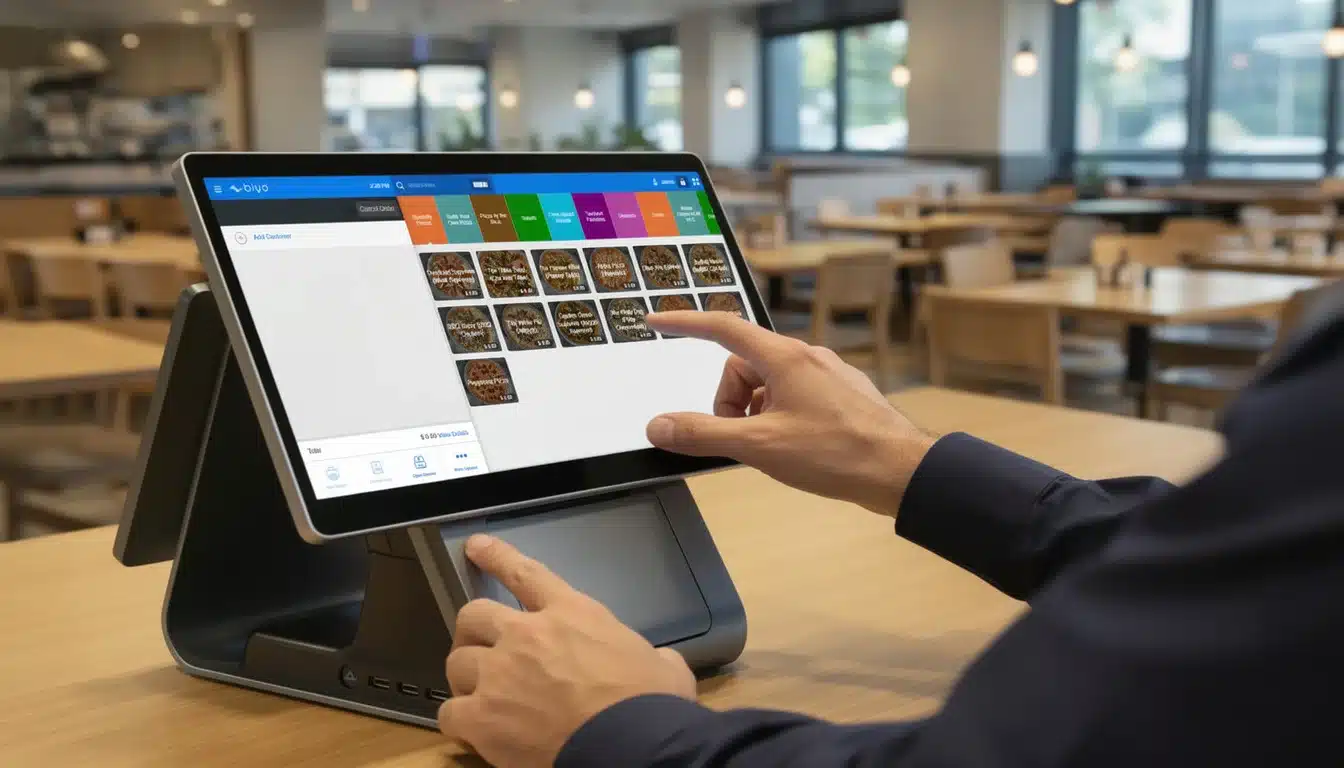
  2. Implement Robust Demand Forecasting: Use your POS data to analyze sales trends and predict future needs accurately. Tools like Biyo POS can provide detailed sales reports that are essential for precise ordering.
  3. Start with a Pilot Program: Don’t overhaul your entire system at once. Test JIT with a specific product category or a single supplier to identify and resolve potential issues before a full-scale rollout.
  4. Create Contingency Plans: JIT is vulnerable to supply chain disruptions. Have backup suppliers or a small safety stock of critical items to mitigate risks from unexpected delays.

2. ABC Analysis (Pareto Analysis)

ABC Analysis is a powerful inventory categorization technique based on the Pareto Principle, which suggests that 80% of outcomes often result from 20% of causes. This method divides your inventory into three distinct categories (A, B, and C) based on their value to your business, typically measured by annual consumption value. By segmenting your stock, you can prioritize your management efforts where they will have the greatest impact.

Category A items are your most valuable products, representing a small portion of total inventory but a large percentage of its value. Category B items are moderately valuable, while Category C items are the most numerous but least valuable. Companies like Amazon use this principle to organize their vast warehouses, ensuring high-demand “A” products are easily accessible for faster fulfillment.

When and Why to Use ABC Analysis

ABC analysis is one of the most strategic inventory control methods for businesses with a diverse range of products that vary significantly in value and sales volume. It’s ideal for:

  • Retail and Convenience Stores: Focusing tight control on high-value items like premium spirits or electronics (Category A) while using simpler controls for low-cost items like candy or snacks (Category C).
  • Restaurants and Bars: Prioritizing expensive ingredients like prime cuts of steak or top-shelf liquor (Category A) over common staples like salt or flour (Category C).
  • Multi-Location Operations: Standardizing inventory priorities across all locations to ensure the most profitable products are always managed effectively.

Key Insight: ABC Analysis is about strategic allocation of resources. Instead of treating every item the same, you invest your time, money, and attention in the small fraction of inventory that drives the most revenue.

Actionable Implementation Tips

Implementing ABC Analysis helps you move from a one-size-fits-all approach to a more nuanced and effective inventory strategy. Here’s how to begin:

  1. Calculate the Annual Consumption Value: For each item, multiply its annual demand by its cost per unit. This figure will be the basis for your categorization.
  2. Use Technology for Automated Classification: Manually sorting hundreds or thousands of SKUs is inefficient. Use your POS system’s reporting features to export sales and cost data. Tools like Biyo POS can generate the reports needed to quickly calculate consumption value and classify products.
  3. Define Your Category Policies: Set distinct management rules for each category. For example, conduct weekly cycle counts for ‘A’ items, monthly for ‘B’ items, and quarterly for ‘C’ items. Apply stricter reorder points and safety stock levels to your ‘A’ products.
  4. Review and Reclassify Regularly: Customer demand and product costs change over time. Schedule quarterly reviews to re-evaluate your product classifications and ensure your high-priority items are still correctly identified.

3. Economic Order Quantity (EOQ)

The Economic Order Quantity (EOQ) is a classic inventory control method that uses a mathematical formula to determine the ideal quantity of stock to order. Developed by Ford W. Harris in 1913, its goal is to find the perfect balance that minimizes the combined costs of ordering and holding inventory. This model helps you answer a critical question: “How much product should I order at one time?”

Economic Order Quantity (EOQ)

By calculating the EOQ, you can avoid tying up too much cash in excess stock while also preventing frequent, costly reorders. It’s a foundational concept in scientific inventory management, used by businesses from large-scale manufacturing operations to retail chains managing staple products, ensuring they maintain optimal stock levels without overspending.

When and Why to Use EOQ

EOQ is one of the most effective inventory control methods for businesses with relatively stable demand and predictable costs. It’s ideal for:

  • Retail Chains: Managing non-perishable staple products like canned goods, beverages, or cleaning supplies where demand is consistent.
  • Manufacturing Companies: Ordering raw materials like plastic, steel, or standard components in the most cost-effective batch sizes.
  • Office Supply Management: Determining how many boxes of paper or toner cartridges to order to minimize both storage and delivery fees.

Key Insight: EOQ’s primary strength is its ability to translate operational costs into a clear, actionable order quantity. It moves inventory decisions from guesswork to a data-driven strategy, directly impacting your bottom line by reducing waste.

Actionable Implementation Tips

Successfully using the EOQ model requires accurate data and regular adjustments. Here’s how to get started:

  1. Calculate Key Variables Accurately: The EOQ formula depends on three main inputs: annual demand, the cost per order, and the annual holding cost per unit. Use your historical sales data and accounting records to get these numbers as precise as possible.
  2. Regularly Update Cost Parameters: Ordering fees and storage costs change over time due to inflation, new supplier terms, or different warehousing expenses. Re-calculate your EOQ at least quarterly to ensure it remains relevant.
  3. Combine with Safety Stock Calculations: The basic EOQ model assumes constant demand and lead times. To protect against stockouts from unexpected spikes in demand or supplier delays, pair your EOQ calculation with a safety stock strategy.
  4. Adjust for Seasonality and Promotions: If a product has predictable seasonal demand, calculate a separate EOQ for peak and off-peak periods. You can dive deeper into these strategies with comprehensive inventory planning.

4. Vendor Managed Inventory (VMI)

Vendor Managed Inventory (VMI) is a collaborative strategy where you shift the responsibility of managing and replenishing stock levels to your suppliers. In this model, the vendor gains access to your inventory data and automatically ships products when levels fall below a pre-agreed threshold, ensuring you never run out of critical items. This partnership transforms the traditional, reactive ordering process into a proactive, automated system.

Vendor Managed Inventory (VMI)

This method strengthens supplier relationships and drastically reduces the administrative burden of inventory management, freeing up your team to focus on core business activities. The classic example is the partnership between Walmart and Procter & Gamble, where P&G directly manages the stock of its products in Walmart’s warehouses and stores. A common real-world application of VMI can be seen in services where a vendor manages stock directly at the customer’s location, ensuring optimal supply, such as in corporate vending machine services.

When and Why to Use VMI

VMI is one of the most powerful inventory control methods for businesses that want to reduce stockouts, lower carrying costs, and improve operational efficiency through strong supplier partnerships. It is ideal for:

  • Restaurants and Bars: Allowing a beverage distributor to manage beer, wine, and liquor stock to ensure popular drinks are always available.
  • Retail and Convenience Stores: Letting a primary supplier like a snack or soft drink company manage their product shelf space.
  • Service-Based Businesses: Having a supplier manage high-use consumables, like cleaning supplies for a car wash or specific products in a salon.

Key Insight: VMI is built on trust and data transparency. By giving suppliers direct insight into your inventory, you empower them to become a strategic partner in your success, aligning their production with your actual sales.

Actionable Implementation Tips

A successful VMI partnership depends on clear communication and shared goals. Here’s how to set it up:

  1. Implement Robust Data Sharing Systems: Your supplier needs real-time access to your inventory levels. A POS system that offers advanced inventory tracking is essential for providing the accurate, up-to-date data required for VMI.
  2. Establish Clear Performance Metrics: Define success together. Agree on key performance indicators (KPIs) like stock turnover rates, in-stock percentages, and order fill rates.
  3. Start with a Key Supplier: Begin with a trusted supplier who handles high-volume, predictable products. A successful pilot program will build a strong case for expanding VMI to other areas of your business.
  4. Conduct Regular Performance Reviews: Schedule regular meetings with your VMI partner to review performance against your agreed-upon metrics, discuss challenges, and identify opportunities for improvement.

5. Kanban System

The Kanban system is a visual inventory control method that uses cues, often in the form of cards or signals, to trigger action. Originating from the Toyota Production System, “Kanban” is Japanese for “visual sign” or “card.” This pull-based system ensures that work flows smoothly by signaling when it’s time to move, produce, or order more inventory, directly tying procurement and production to actual consumption.

Instead of forecasting and pushing products through the system, Kanban pulls items as they are needed, preventing overproduction and minimizing on-hand stock. This approach is famously used in manufacturing but has been adapted for everything from software development (Agile methodologies) to hospital supply management and even simple supermarket shelf stocking, where an empty shelf is the visual cue to restock.

When and Why to Use a Kanban System

Kanban is one of the most effective inventory control methods for businesses that need a simple, visual way to manage workflow and prevent bottlenecks. It excels in environments with repeatable processes. It’s ideal for:

  • Restaurants and Kitchens: Using a two-bin system for non-perishable ingredients like flour or spices. When the first bin is empty, it signals an order for more while the second bin is used.
  • Bars and Cafes: Visual cues like an almost-empty bottle of a specific syrup or liquor can trigger it to be added to the reorder list for the next supply run.
  • Retail Stockrooms: Using cards on bins of popular products. When an item is moved to the sales floor, its card is placed on a central board to signal the need to reorder.

Key Insight: The power of Kanban lies in its simplicity and visual nature. It makes inventory levels and workflow status immediately obvious to everyone, empowering team members to take action without complex directives and improving communication.

Actionable Implementation Tips

A successful Kanban system relies on clear rules and team discipline. Here’s how to get started:

  1. Map Your Workflow: Clearly define the stages your inventory goes through, from ordering to final use. A simple workflow could be “To Order,” “Ordered,” and “In Stock.”
  2. Use Effective Visual Boards: Set up a physical or digital Kanban board with columns for each stage. Use cards or sticky notes to represent inventory items. As an item moves through the process, move its card to the corresponding column.
  3. Set Work-in-Progress (WIP) Limits: To prevent bottlenecks, limit the number of items allowed in each stage of your workflow. For example, limit the “Ordered” column to prevent over-ordering before items are received.
  4. Train Your Team Thoroughly: Ensure every employee understands the visual signals and knows what action to take when they see one. Consistency is crucial for the system to function correctly.

6. Safety Stock Management

Safety Stock Management is an inventory control method that involves holding additional stock beyond what is needed to meet expected demand. This buffer inventory acts as a crucial insurance policy against stockouts, protecting your business from unpredictable fluctuations in customer demand, unexpected supplier delays, or inaccurate forecasting. By maintaining this cushion, you ensure you can continue to serve customers even when the unexpected happens.

This strategy is about finding the perfect balance between the risk of stockouts and the cost of holding extra inventory. For example, a popular restaurant might keep safety stock of its best-selling wine to avoid disappointing customers during a busy weekend. Similarly, a retail store will stock extra seasonal items like holiday decorations to hedge against a sudden spike in demand that a forecast might miss.

When and Why to Use Safety Stock

Safety Stock is one of the most essential inventory control methods for businesses that face unpredictable demand or rely on supply chains with variable lead times. It is ideal for:

  • Restaurants and Bars: Maintaining a buffer for non-perishable best-sellers like specific liquors or popular sauces to prevent stockouts during unexpected rushes.
  • Retail Stores: Protecting against sudden demand surges for seasonal or promotional items.
  • E-commerce Businesses: Ensuring fulfillment centers can meet customer orders even if a shipment from a supplier is delayed.
  • Service-Based Businesses: Keeping critical spare parts or essential supplies on hand to avoid service interruptions, like a carwash having extra high-demand soaps.

Key Insight: Safety stock isn’t just “extra stuff”; it’s a calculated buffer designed to protect your customer satisfaction and revenue. The goal is not to eliminate all stockouts but to minimize their risk to an acceptable level without tying up excessive capital.

Actionable Implementation Tips

Implementing an effective safety stock strategy requires data-driven decisions, not guesswork. Here’s how to start:

  1. Calculate Your Needs Accurately: Use a safety stock formula that considers both demand variability (how much your sales fluctuate) and lead time variability (how reliable your suppliers are). Simple formulas can get you started, but more advanced statistical methods provide greater accuracy.
  2. Set Clear Service Level Targets: Decide what percentage of customer orders you aim to fulfill without a stockout (e.g., 95%). A higher service level requires more safety stock. This target helps you quantify how much risk you’re willing to accept.
  3. Use POS Data for Analysis: Your POS system is a goldmine of data. Analyze historical sales reports to understand demand fluctuations for specific products. A robust restaurant inventory management system can provide the insights needed to make these calculations.
  4. Review and Adjust Regularly: Market conditions, supplier performance, and demand patterns change. Review your safety stock levels quarterly or semi-annually to ensure they are still optimized and not leading to excess carrying costs.

7. Material Requirements Planning (MRP)

Material Requirements Planning (MRP) is a system-based inventory control method used to manage manufacturing processes. It is a computer-based system that calculates exactly what materials you need, how much you need, and when you need them to fulfill a production schedule. By integrating your master production schedule, bill of materials (BOM), and current inventory data, MRP ensures all necessary components are available for production, preventing delays and minimizing excess stock.

This method is the backbone of many complex manufacturing operations. For example, an automotive plant uses MRP to coordinate the arrival of thousands of parts, from engines to microchips, ensuring they are ready for the assembly line at the precise moment. Similarly, furniture manufacturers rely on it to manage wood, hardware, and fabric orders based on customer demand, streamlining the entire production workflow.

When and Why to Use MRP

MRP is one of the most powerful inventory control methods for businesses with complex assembly or production processes. It is essential for:

  • Manufacturing and Assembly: Ideal for electronics, automotive, or aerospace industries where products consist of many individual components.
  • Businesses with Complex Bills of Materials: Perfect for companies, like furniture makers, that need to track numerous raw materials for each finished product.
  • Made-to-Order Production: Helps manage inventory for custom orders by ensuring all required parts are procured only after an order is confirmed.

Key Insight: MRP transforms inventory management from a reactive process to a proactive one. It doesn’t just track what you have; it intelligently predicts what you will need, creating a precise roadmap for procurement and production.

Actionable Implementation Tips

Implementing an MRP system is a strategic project that hinges on data and process discipline.

  1. Ensure Data Accuracy: Your MRP system is only as good as the data it receives. Maintain a meticulously accurate bill of materials (BOM), up-to-date inventory records, and a realistic master production schedule.
  2. Integrate with Other Systems: For maximum efficiency, integrate your MRP with your POS, accounting, and supply chain management software. This creates a single source of truth for all operational data.
  3. Invest in Thorough Training: Ensure your production planners and inventory managers are fully trained on how to use the MRP system. Proper training prevents user error and maximizes the system’s benefits.
  4. Refine Production Timelines: Effective MRP critically relies on accurate inputs. Use tools for precise manufacturing production time estimation to ensure your master schedule is realistic and achievable.

8. FIFO (First In, First Out)

FIFO, or First In, First Out, is a fundamental inventory control method that operates on a simple principle: the first items that enter your inventory are the first ones to be sold or used. This chronological approach ensures that older stock is moved out before newer stock, which is essential for maintaining product quality and freshness. It mirrors how customers naturally shop, picking items from the front of the shelf.

This method is the gold standard for businesses dealing with perishable goods or products with expiration dates. For example, a grocery store uses FIFO to sell milk, ensuring customers always buy the freshest available product and minimizing costly spoilage. Similarly, pharmacies and medical facilities rely on FIFO to manage medications and supplies, guaranteeing their efficacy and safety.

When and Why to Use FIFO

FIFO is one of the most widely used inventory control methods because it is logical and helps prevent waste. It’s ideal for:

  • Restaurants and Cafes: Ensuring fresh ingredients like produce, dairy, and meat are used in the order they were received to maintain food quality and safety.
  • Grocery and Convenience Stores: Managing products with expiration dates, from canned goods to fresh bakery items, to reduce spoilage and write-offs.
  • Pharmaceutical and Medical Facilities: Handling time-sensitive medications, vaccines, and sterile supplies to ensure they are used before they expire.

Key Insight: FIFO is more than just an accounting rule; it’s an operational standard for quality control. Proper implementation directly impacts customer satisfaction and protects your bottom line from losses due to expired or obsolete stock.

Actionable Implementation Tips

Implementing FIFO effectively requires disciplined organization and clear processes. Here’s how to get started:

  1. Design Storage for Easy Access: Organize your stockroom, coolers, and shelves so that new stock can be placed behind old stock. Use a front-loading system where possible.
  2. Use Clear Labeling Systems: Label all incoming inventory with the delivery or expiration date. This makes it easy for staff to identify which items to use or stock first at a glance.
  3. Train Staff on Rotation Principles: Your team is central to FIFO’s success. Ensure everyone understands the importance of stock rotation and is trained on the correct procedures for stocking shelves and picking ingredients.
  4. Implement Automated Tracking: Use a modern POS system to monitor inventory age. Tools like Biyo POS can help track inventory items by purchase date, making it simpler to manage stock rotation and understand which products are moving. For more details on this and other accounting approaches, you can learn more about inventory costing methods here.

Inventory Control Methods Comparison

Inventory Method Implementation Complexity Resource Requirements ⚡ Expected Outcomes Ideal Use Cases Key Advantages ⭐
Just-In-Time (JIT) Inventory High Moderate ⚡ Minimized inventory waste and carrying costs Manufacturing with predictable demand and reliable suppliers Reduced costs, improved cash flow, enhanced quality ⭐
ABC Analysis (Pareto Analysis) Low to Moderate Low ⚡ Optimized resource allocation and inventory control Businesses needing prioritized inventory management Focused control on high-value items, simplified decisions ⭐
Economic Order Quantity (EOQ) Moderate Low to Moderate ⚡ Minimized total inventory costs Retail, manufacturing with stable demand Clear ordering guidelines, cost minimization ⭐
Vendor Managed Inventory (VMI) Moderate to High High ⚡ Improved inventory availability and supply chain visibility Collaborative arrangements between suppliers and retailers Reduced admin burden, better supplier relations ⭐
Kanban System Moderate Low to Moderate ⚡ Improved workflow visibility and inventory control Production environments needing flexible and visual inventory flows Reduces overproduction, enhances team collaboration ⭐
Safety Stock Management Low to Moderate Moderate ⚡ Reduced stockouts and customer service level improvements Environments with demand/supply uncertainty Protects against stockouts, increases flexibility ⭐
Material Requirements Planning (MRP) High High ⚡ Accurate material planning and reduced inventory levels Complex manufacturing with detailed production schedules Improved coordination and systematic planning ⭐
FIFO (First In, First Out) Low Low ⚡ Reduced spoilage and maintained product quality Perishable goods and industries focused on freshness Simple approach, preserves product freshness ⭐

Choosing and Implementing Your Ideal Inventory Strategy

We’ve explored a comprehensive toolkit of powerful inventory control methods, from the lean efficiency of Just-In-Time (JIT) to the structured foresight of Material Requirements Planning (MRP). We’ve seen how ABC Analysis helps you focus your energy on high-value products, how FIFO ensures product freshness and accurate costing, and how Safety Stock provides a crucial buffer against the unexpected. Each method offers a unique lens through which to view and manage your stock, but the real power emerges not from choosing one, but from strategically combining them.

The journey to inventory excellence isn’t about finding a single “perfect” system. Instead, it’s about building a customized, hybrid strategy that fits the unique rhythm of your business. A bustling cafe might lean heavily on FIFO for its perishable goods while using JIT principles with its local bakery supplier. A boutique retail store, on the other hand, could use ABC Analysis to identify its top-selling apparel, applying the Economic Order Quantity (EOQ) model to those items to optimize purchasing costs, while maintaining safety stock for unpredictable seasonal bestsellers.

From Theory to Tangible Results

Understanding these concepts is the first step, but implementation is where true value is unlocked. Moving from theory to practice requires a clear-eyed assessment of your current operations and a commitment to leveraging technology that can handle the complexity. The ultimate goal is to create a responsive, data-driven system that minimizes waste, prevents stockouts, and frees up capital that would otherwise be tied up on your shelves.

The key takeaways to guide your implementation are:

  • Start with Data: You cannot manage what you do not measure. Before implementing any new method, gather accurate data on sales velocity, lead times, and carrying costs. This baseline is essential for making informed decisions.
  • Prioritize Ruthlessly: Not all inventory is created equal. Use ABC Analysis as your foundational sorting hat to ensure your most critical items receive the most attention and strategic oversight.
  • Build a Hybrid Model: Cherry-pick elements from different inventory control methods. Combine the Kanban system for high-turnover supplies with a robust Safety Stock calculation for items with volatile demand or unreliable suppliers.
  • Embrace Technology: Manual tracking with spreadsheets is prone to error and simply cannot keep up with a growing business. A modern POS system is no longer a luxury; it is the central nervous system for effective inventory control.

Mastering your inventory is one of the most impactful levers you can pull to increase profitability and operational resilience. It transforms your stock from a passive cost center into a dynamic asset that actively drives growth, enhances customer satisfaction, and provides a significant competitive edge in a crowded marketplace.

Ready to stop guessing and start managing your inventory with precision? See how Biyo POS provides the real-time tracking, automated reordering, and powerful analytics you need to implement these advanced inventory control methods effortlessly. Explore how Biyo POS can transform your operations today.

Related Posts