
Managing business finances manually can quickly become overwhelming. Many business owners spend hours every week reconciling sales reports, tracking receipts, and entering transactions into accounting software. This process is not only time-consuming but also increases the risk of errors that can impact financial reporting and decision-making.
With an integration with QuickBooks Online, businesses can automate the flow of financial data between their POS system and accounting platform. Sales, taxes, payments, refunds, and tips can all sync automatically, eliminating repetitive manual tasks and providing a clear, real-time view of financial performance.
For businesses using Biyo POS, this integration creates a centralized financial system. Instead of working with disconnected tools, owners gain consistent, accurate data that supports better decision-making and long-term growth.
Table of Contents
- Why QuickBooks Online Integration Is a Game-Changer
- Preparing Your Systems for a Smooth Integration
- How to Connect Biyo POS and QuickBooks Online
- Configuring Data Mapping and Sync Settings
- Common Mistakes to Avoid
- Maintaining the Integration for Long-Term Success
- Advanced Use Cases and Real-World Benefits
- How Biyo Simplifies Accounting Automation
- Frequently Asked Questions
Why QuickBooks Online Integration Is a Game-Changer
Manual reconciliation is one of the most time-consuming parts of running a business. Owners often spend hours reviewing reports, matching transactions, and correcting data entry mistakes.
By integrating your POS system with QuickBooks Online, this process becomes automated. Transactions are recorded instantly, reducing administrative work and improving financial accuracy.
This integration allows business owners to move from reactive accounting to proactive financial management. Instead of waiting until the end of the month, you can monitor revenue and expenses as they happen.
The Real-World Impact of Automation
- Reduced human error: Eliminates mistakes caused by manual entry.
- Real-time financial visibility: Track performance instantly.
- Operational efficiency: Free up time for business growth.
For example, a restaurant owner can compare daily sales with labor costs in real time, while a retail business can monitor product performance without waiting for reports.
Biyo POS & QuickBooks Integration Benefits
| Business Area | Before Integration | After Integration |
|---|---|---|
| Daily Sales Entry | Manual reporting | Automatic syncing |
| Reconciliation | Time-consuming | Instant matching |
| Financial Reporting | Delayed insights | Real-time visibility |
| Accuracy | Error-prone | Consistent and reliable |
Preparing Your Systems for a Smooth Integration
Before connecting your POS system to QuickBooks Online, preparation is critical. Poor setup can lead to incorrect data mapping and inaccurate financial reports.
Organizing Your Chart of Accounts
Your chart of accounts determines how transactions are categorized. Instead of using a single “Sales” category, break revenue into specific streams such as food, beverages, and merchandise.
This structure provides better financial insights and simplifies reporting.
Maintaining Data Consistency
Ensure product names, SKUs, and categories are consistent across systems. Inconsistent data can cause synchronization errors and duplicate entries.
Setting Clear Integration Goals
Decide how you want your data to flow. Most businesses prefer daily summarized syncing rather than real-time transactions to keep accounting records clean and manageable.
How to Connect Biyo POS and QuickBooks Online
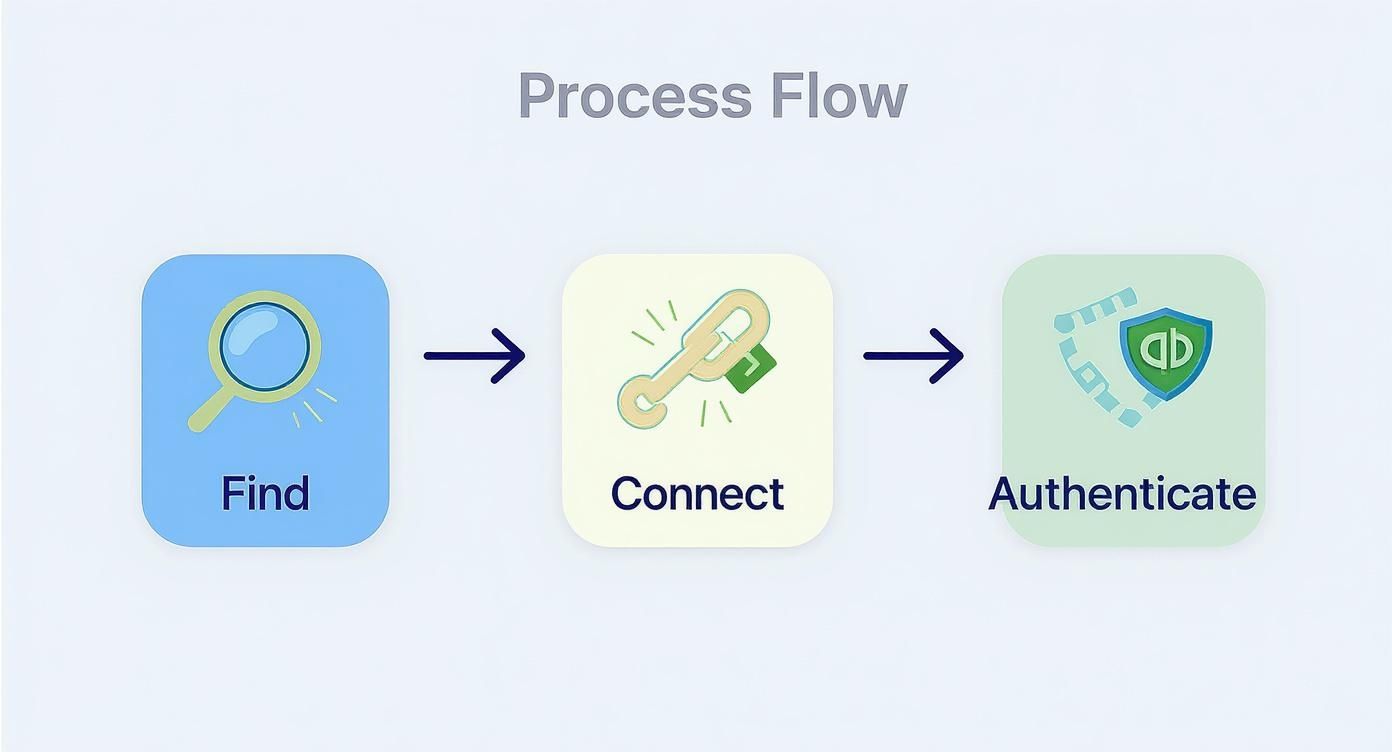
Connecting the systems is straightforward. Within the Biyo POS dashboard, navigate to integrations and select QuickBooks Online. You’ll be redirected to Intuit’s secure login page to authorize access.
This ensures that credentials remain protected while enabling secure data transfer.
Choosing the Right Sync Start Date
Select a start date that aligns with your financial reporting period. This prevents duplication and keeps records organized.
Configuring Data Mapping and Sync Settings
Data mapping ensures transactions are assigned to the correct accounts.
- Food sales → Sales – Food
- Beverage sales → Sales – Beverages
- Tips → Tips Payable
- Discounts → Discounts Account
Choosing the Right Sync Frequency
- Daily sync: Recommended for most businesses.
- Real-time sync: Useful for high-volume operations.
Daily syncing keeps reports clean while still providing timely insights.
Common Mistakes to Avoid
Most integration problems come from setup errors rather than the system itself.
- Incorrect account mapping
- Duplicate product entries
- Syncing unnecessary historical data
- Skipping reconciliation checks
Avoiding these mistakes ensures long-term accuracy and reliability.
Maintaining the Integration for Long-Term Success
Integration is not a one-time task. Regular monitoring ensures everything continues working correctly.
Review sync logs, verify mappings, and reconcile accounts periodically. For multi-location businesses, use QuickBooks classes to separate transactions and generate detailed reports.
Advanced Use Cases and Real-World Benefits
Once the integration is running smoothly, businesses can leverage it for deeper insights and strategic decisions.
For example, restaurants can analyze sales by category to optimize menus, while service businesses can track profitability by service type.
Retail businesses can identify best-selling products and adjust inventory accordingly.
These insights allow owners to move beyond basic bookkeeping and use financial data as a growth tool.
How Biyo Simplifies Accounting Automation
Biyo POS integrates directly with QuickBooks Online to automate financial workflows and eliminate manual bookkeeping.
It provides real-time reporting, accurate transaction tracking, and centralized financial data, allowing business owners to make informed decisions quickly.
If you want to streamline your accounting process, you can sign up here and explore how automation improves efficiency.
Frequently Asked Questions
How often should I reconcile my accounts?
Weekly reconciliation is recommended to ensure accuracy.
What causes integration errors?
Incorrect data mapping and inconsistent product data are the most common causes.
Should I sync historical data?
No, it is best to start from the current financial period.
How are refunds handled?
Refunds automatically reverse the original transaction in QuickBooks.